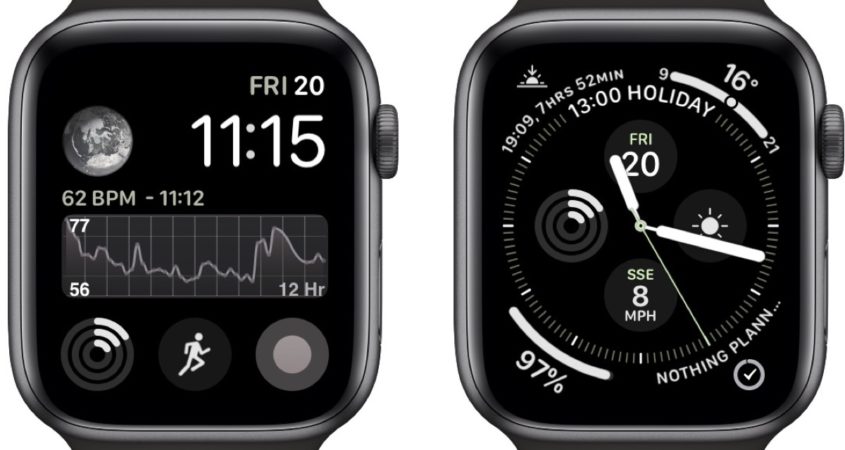
If you use one of the Infograph watch faces on your Apple Watch, you may be surprised to find that the colors have drained from your chosen complications since you updated to watchOS 6.
Despite how it may first seem, the sudden grayscale look is not a bug, but an intentional watch face change that Apple describes as “new monochrome complications in Infograph and Infograph Modular” in the watchOS 6 release notes.
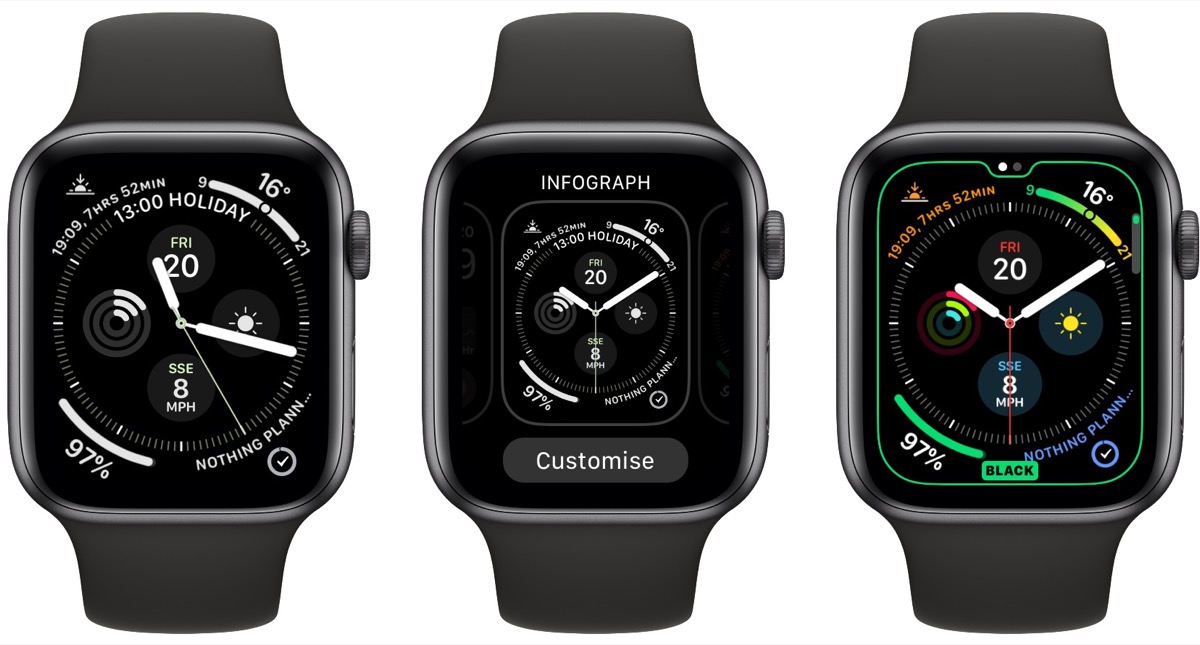
The way Apple has implemented the feature is a bit confusing initially, because the monochrome style appears by default if you’ve selected one of the various accent colors for your watch face. The chosen accent remains, but the complications display in monochrome.
If you don’t like it, you can reinstate color complications by following these simple steps.
On your Apple Watch, hard press on the monochrome Infograph watch face.
Tap Customize.
On Infograph watch faces, use the Digital Crown to scroll up and select either the Black or White color option. On Infograph Modular faces, scroll up and select Multicolor.
Press the Digital Crown twice to confirm your selection and exit the customize screen.
You can do the same thing in the Watch app on iPhone. Select the My Watch tab and tap the offending watch face under My Faces, then select Black, White, or Multicolor from the color options.
Apple’s newest range of smartphones, the iPhone 11, iPhone 11 Pro and iPhone Pro Max, share the same overall design of Apple’s 2018 devices. In the absence of a Home button, they’ve also inherited the unique method of forcing a quick restart.
Restarting your iPhone involves pressing the Side buttons in a special combination, and while it’s not immediately obvious, once you’ve learned the steps, a force restart is the quickest way to restart your iPhone if it’s acting up.
Force Restarting iPhone 11, iPhone 11 Pro, and iPhone 11 Pro Max
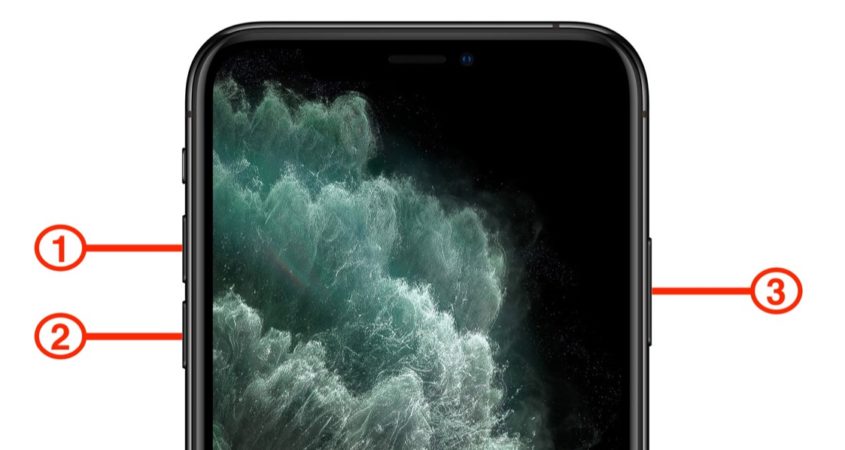
Quickly press and release the Volume Up button.
Quickly press and release the Volume Down button.
Press and hold the Side button until the Apple logo appears, then release the Side button.
During this process, you will see a slider to power off the iPhone. You’re going to want to ignore it and continue holding down the Side button until the screen goes black. At that point, the Apple logo will pop up, and after the restart is complete, the screen will activate once again.
Using the force restart process prevents you from having to shut the iPhone down entirely, which takes several more steps.
If you do want to shut the iPhone down, you can do so by going to the General section of the Settings app, scrolling down to the bottom, and choosing the Shut Down option.
You can also hold down the Volume Up button and the Side button at the same time to bring up the Emergency SOS interface that also houses a “slide to power off” option.
Restarting Other Devices
Don’t have one of these iPhones? Make sure to check out our guides on how to force restart other Apple products, listed below:
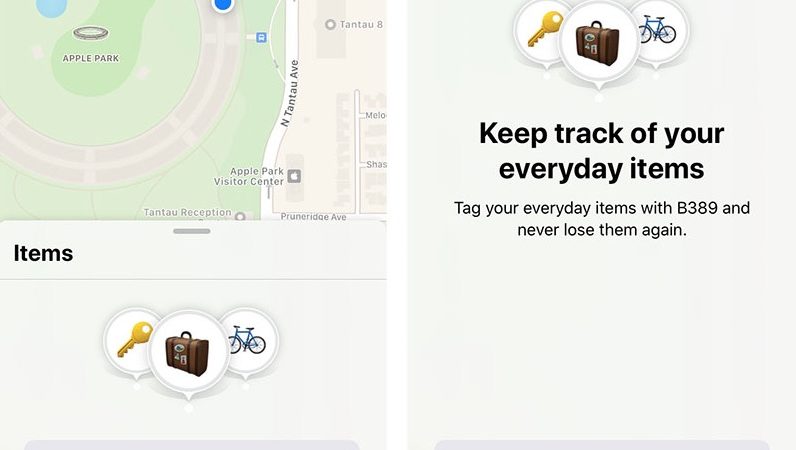
MacRumors has obtained never-before-seen screenshots of a new “Items” tab that Apple is developing for its Find My app in iOS 13. This tab is not available in the public version of the software update released today.
Similar to the existing “People” and “Devices” tabs in the Find My app, the “Items” tab will display a map at the top and a list of items associated with a user’s Apple ID account at the bottom. The existing “Me” tab in the Find My app will be relocated to an avatar hovering over the map in all tabs.
The new “Items” tab will be closely integrated with Apple’s rumored Tile-like item tracking tags, codenamed “B389” internally. By tapping the “Add” button in the tab, users will be able to track the location of items affixed with so-called Apple Tags directly within the Find My app.
The tab informs users to “tag your everyday items with B389 and never lose them again,” making it clear that Apple is working on a Tile competitor. MacRumors shared an image of Apple’s tag from an internal build of iOS 13 last month, although it may not reflect the final design of the product.
MacRumors also shared a similar screenshot of the “Items” tab last month, but these screenshots provide a more detailed view.
iPhone users will receive a notification when they are separated from a tagged item, according to strings in the internal build of iOS 13. If necessary, users can then tap a button in the Find My app that will cause Apple’s tag to start chiming loudly to help them locate the lost item.
If users are unable to find an item, they can place the attached tag into a “Lost Mode.” Then, if another iPhone user comes across the lost item, they will be able to view contact info for the item’s owner and contact them by phone or text message. The item’s owner will be immediately notified.
“Safe Locations” can be set where a user will not be notified if an item is left in certain locations, and users will also be able to share the location of items with friends and family members, per the internal build of iOS 13.
Last month, MacRumors reported that augmented reality will likely play a role in Apple’s item tracking functionality.
Like the Pixie Tracker, the Find My app will likely incorporate features from Apple’s ARKit framework. The internal build of iOS 13 includes an asset for a 3D red balloon that could help a user pinpoint a lost item after scanning a room with their iPhone. There’s also an image of a 2D orange balloon.
“Walk around several feet and move your iPhone up and down until a balloon comes into view,” reads a string in internal iOS 13 code.
The internal build of iOS 13 containing these leaked images and screenshots is from early June, so we cannot guarantee that the “Items” tab or all of the details presented above will be exactly as described. We also cannot guarantee that Apple will ever release the tags, but it has certainly been working on them.
Apple did not announce its Tile competitor at its September event earlier this month, but it could unveil the tags at a potential October event or beyond.
Apple customers in Australia and New Zealand are always the first to get their hands on new devices on launch day because of differences in time zones, and the new 2019 devices are no exception.
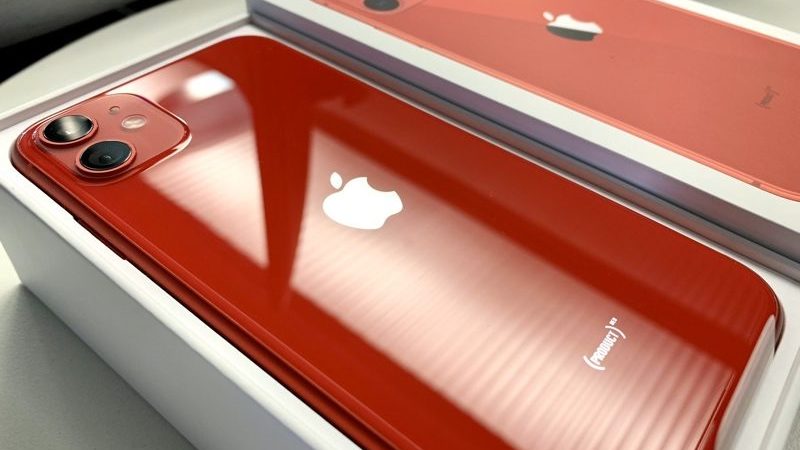
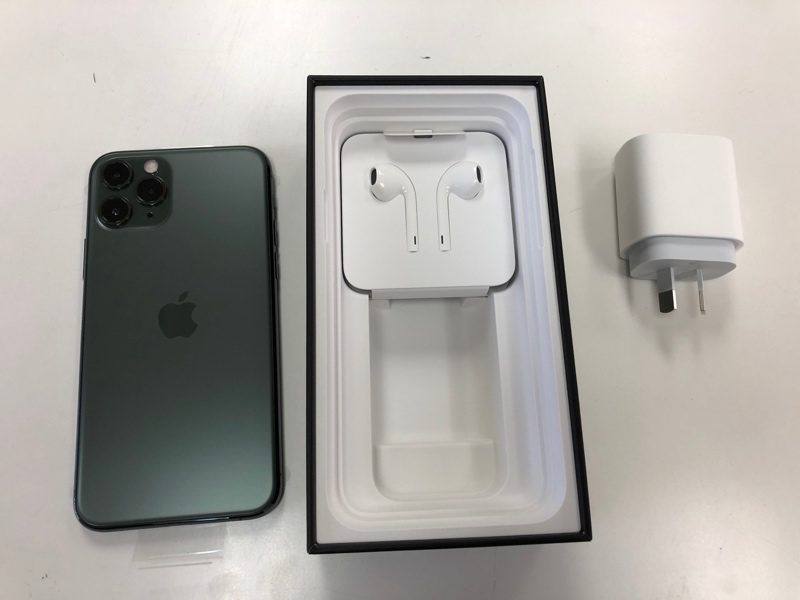
It’s just after 8:00 a.m. in New Zealand, and customers who pre-ordered an iPhone 11, iPhone 11 Pro, iPhone 11 Pro Max, or Apple Watch Series 5 are beginning to receive their shipments and have started sharing the first customer photos of the devices on Twitter, Instagram, reddit, and the MacRumors forums.
There are no Apple Stores located in New Zealand, so customers in Australia will be the first to be able to purchase an Apple Watch Series 5 or new iPhone 11/11 Pro model from an Apple retail location.
Available stock in Australia should give us some idea of what we can expect in other retail stores around the world as it rolls around to September 20 in other countries. Many iPhone 11 Pro and Pro Max models sold out early this year, so there are customers who may be hoping for in store stock.
Following New Zealand and Australia, iPhone 11, 11 Pro, 11 Pro Max, and Apple Watch Series 5 sales will kick off in Asia, Europe, the Middle East, and finally, North America. Apple Stores globally will be opening up at 8:00 a.m. local time to allow customers to pick up reserved devices and make walk-in purchases.
This includes Apple’s new Fifth Avenue Store, which has been entirely overhauled and will be reopening for the first time since 2017 on September 20.
Apple is likely to have some stock available for walk-in customers at most of its retail locations around the world, but supplies of some devices, such as the 11 Pro and Pro Max in the new Midnight Green color, could be limited. As always, customers hoping for a new device on launch day should try to get to the Apple Store early.
Other retailers, including carriers and big box stores, should also have some iPhone 11, 11 Pro, and 11 Pro Max models to offer up to customers.
In the United States, the first new device deliveries will take place on the east coast starting at 8:00 a.m.
Make sure to stay tuned to MacRumors both tomorrow and throughout next week, because we’ll have plenty of iPhone 11, iPhone 11 Pro, iPhone 11 Pro Max, and Apple Watch Series 5 coverage to share with our readers.
The iPhone 11, 11 Pro, and 11 Pro Max will soon be available in Australia and New Zealand before rolling out to other countries around the world, and customers have already started lining up to purchase one of Apple’s new devices.
At the Orchard Road store in Singapore, where the iPhone 11 and 11 Pro will roll out in just a few hours, hundreds of people are waiting.
Most U.S. stores don’t appear to have long lines just yet, but people will likely start showing up at retail locations as the launch date draws nearer.
Apple’s iPhone 11 Pro and Pro Max models sold out rather quickly after pre-orders became available on September 13, so there may be a decent number of people hoping to get a new iPhone in store.
Orders placed for new iPhone 11 Pro and Pro Max models today won’t be shipping out until October, which will increase demand for in store models.
Customers in the United States who did not pre-order and who are hoping for a launch day device should get to an Apple retail store or carrier store as early as possible.
Are you planning to wait in line for an Apple device this year? Let us know in the comments.
Apple today released iOS 13, the newest version of the software that’s designed to run on the iPhone. Apple’s yearly software updates always bring long lists of new features and changes that can make your iPhone feel like a foreign device.
New updates can be intimidating, but installing them is often worthwhile because Apple’s updates make sure your devices are safe, up to date, and have the latest feature improvements.
If you’re worried about performance taking a hit on older devices, rest assured that Apple has made an effort in both iOS 12 and iOS 13 to make older devices more efficient. In iOS 13, Face ID is faster, apps launch up to twice as fast, and are, in general smaller in size for quicker downloads and updates.
We’re going to jump start you with the what you need to know to get up and running with iOS 13 right away.
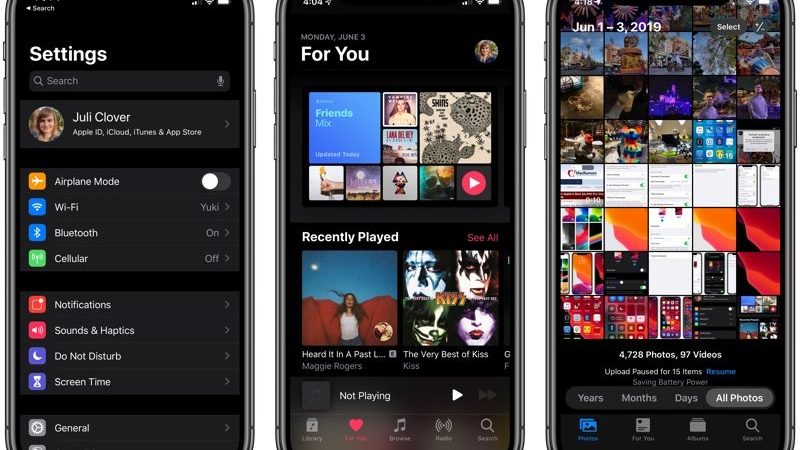
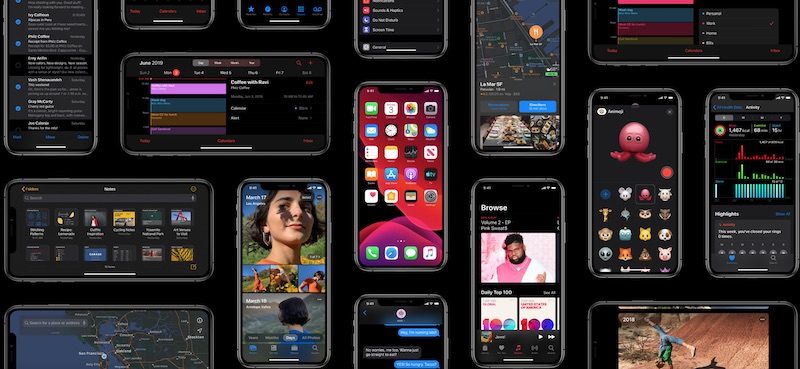
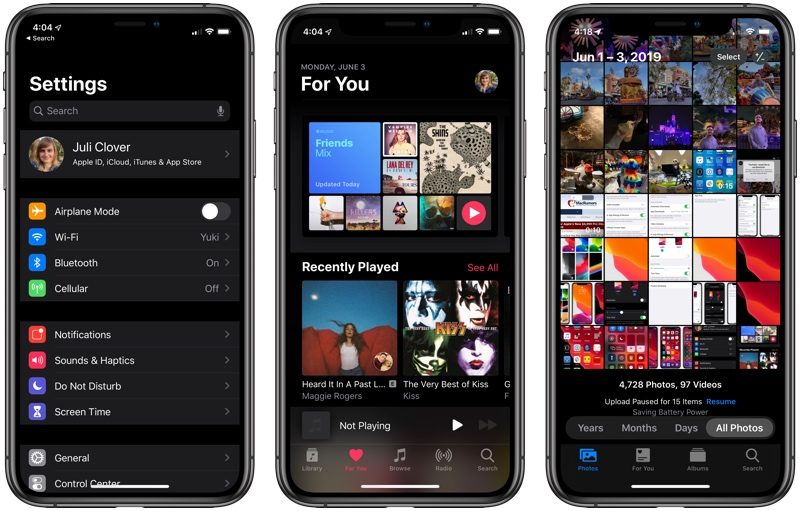
Your iPhone isn’t going to look too much different when you install iOS 13, with one exception – a new dark theme that’s available if you enable it. Apple will ask you if you want to turn on Dark Mode when you first update your iPhone to iOS 13, and if you do opt to turn it on, prepare for everything from apps to the Home screen to shift to a darker shade.
Dark Mode is one of those features that iOS users have wanted for ages, and it’s great if you have eyes sensitive to light or want a darker theme for your apps at night. Most Apple apps, like Mail, Messages, Health, Reminders, the App Store, Apple Music, and more have dark themes that activate whenever you turn on Dark Mode, and third-party developers are also able to develop darker themes to swap to when Dark Mode is activated.
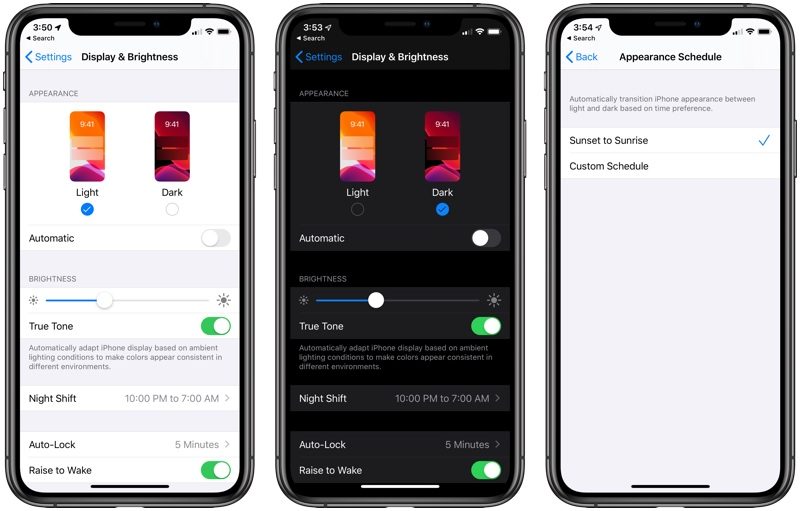
You can turn Dark Mode on permanently, toggle it on when you need it, or set it to come on at a set schedule, such as sunset to sunrise, all of which can be controlled via Settings or the Control Center. The opposite of Dark Mode is Light Mode, which is the same old mode that’s been available on your iPhone for years, so that’s an option too if you don’t like the darker display.
Some of the gestures on your iPhone (and iPad) are a little bit different in iOS 13, but they’re easy to adjust to. Here’s a quick list of what’s been tweaked:
Scrolling – Just grab the scroll bar and drag it upwards or downwards to get where you want to go instead of swiping.
Selecting Text – Drag a finger right over text to select it. Double tap to select a word, triple tap to select an entire sentence, and quadruple tap to select a paragraph.
Cursor Movement – To move the cursor when writing a note or an email, just stick your finger on it and drag it wherever you want it to go.
Cut, Copy, and Paste – Pinch up with three fingers to copy, pinch up with fingers two times to cut, and pinch down with three fingers to paste.
Undo/Redo – To undo and redo, swipe with three fingers to the left or the right.
Selecting Multiples – To select multiple items, like messages, files, or folders, tap with two fingers and then drag.
Can’t remember all these? If you tap and hold with three fingers, an edit bar appears with undo, redo, cut, copy, and paste.
Bonus for iPhone XR and iPad owners: 3D Touch functionality is available in the form of Haptic Touch or a long press (on the iPad). Just long press where supported. It’s available almost everywhere 3D Touch was available. New iPhone 11 and iPhone 11 Pro users will also need to get used to Haptic Touch instead of 3D Touch.
3. Go Configure These Settings
Silence Unknown Callers
Automatic Safari Tab Closing
Optimize Battery Charging
Location controls for Shared Images
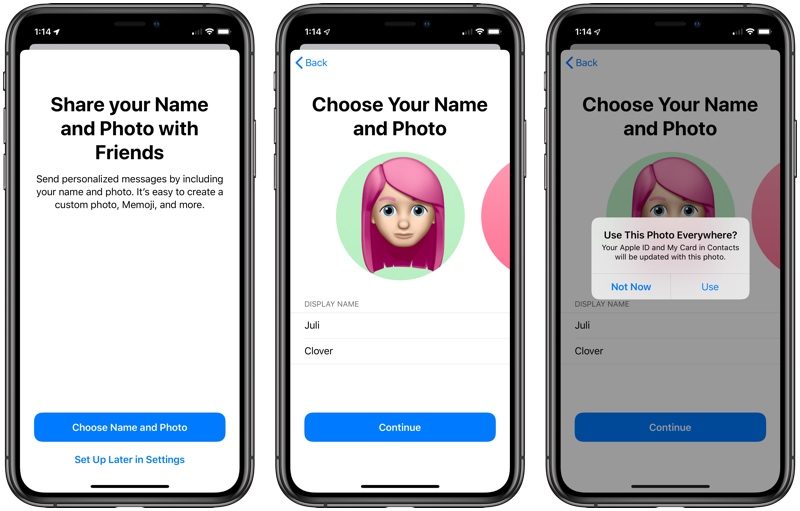
4. Set Up a Messages Profile
When you open up Messages for the first time after installing iOS 13, it’s going to prompt you to set up your profile. Your profile is basically just a name and a photo that’s shared with people when you converse with them.
Your profile can be customized with an image you took, an Animoji, or just a letter, and you can choose to share it with your contacts, everyone, or no one at all.
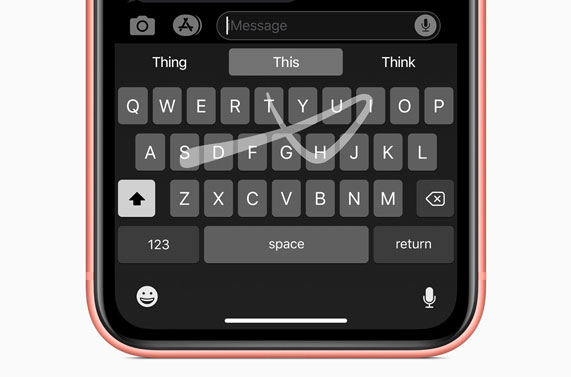
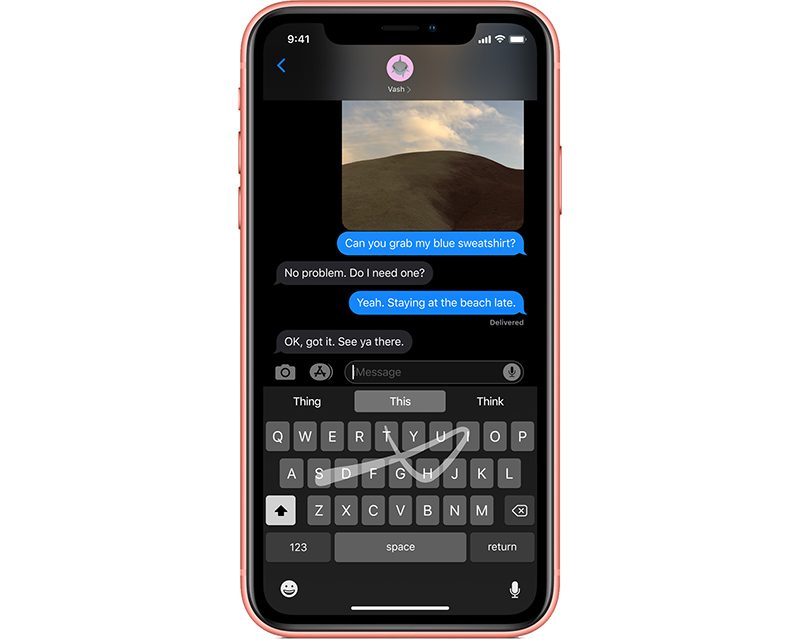
iOS 13 has a new “QuickPath” keyboard, which is Apple’s fancy way of saying that it’s added swipe gestures for typing. You can now slide to type, dragging your fingers over letters instead of picking them up to type as you normally do.
If you’ve ever used a swipe-based keyboard, this is the same thing. Just swipe from letter to letter to form words. If you hate it, don’t worry, you can still tap, or use swipes and taps interchangeably.
6. Memoji/Animoji Stickers for Everyone
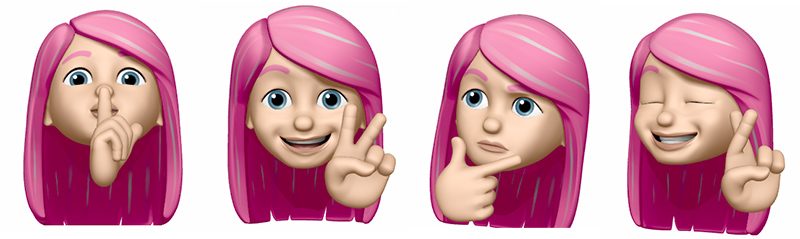
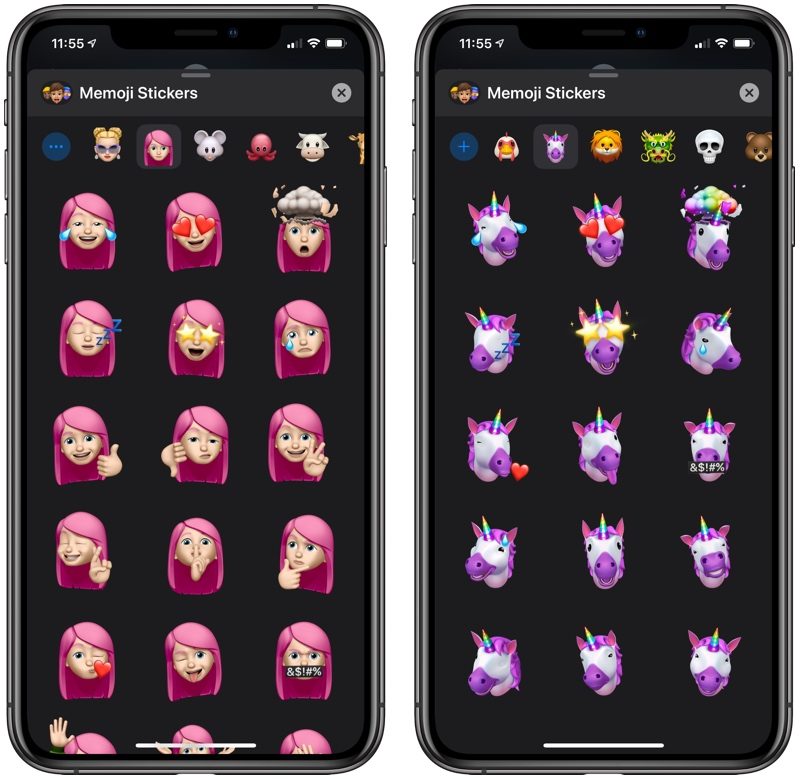
Memoji and Animoji have been available on all devices with a Face ID camera, but in iOS 13, Animoji and Memoji are expanding to stickers that everyone can use.
There’s a new Animoji Stickers app in the app drawer in Messages, where you can choose from already-available Animoji characters in a variety of poses or create new Memoji stickers that look just like you.
Animoji and Memoji stickers are available on all iOS devices that run iOS 13 and work like all other stickers so you can send them to people in Messages. You can also access your Animoji/Memoji stickers in other apps through the “Recently Used” menu.
Learn how to create and use Animoji/Memoji stickers in our how to.
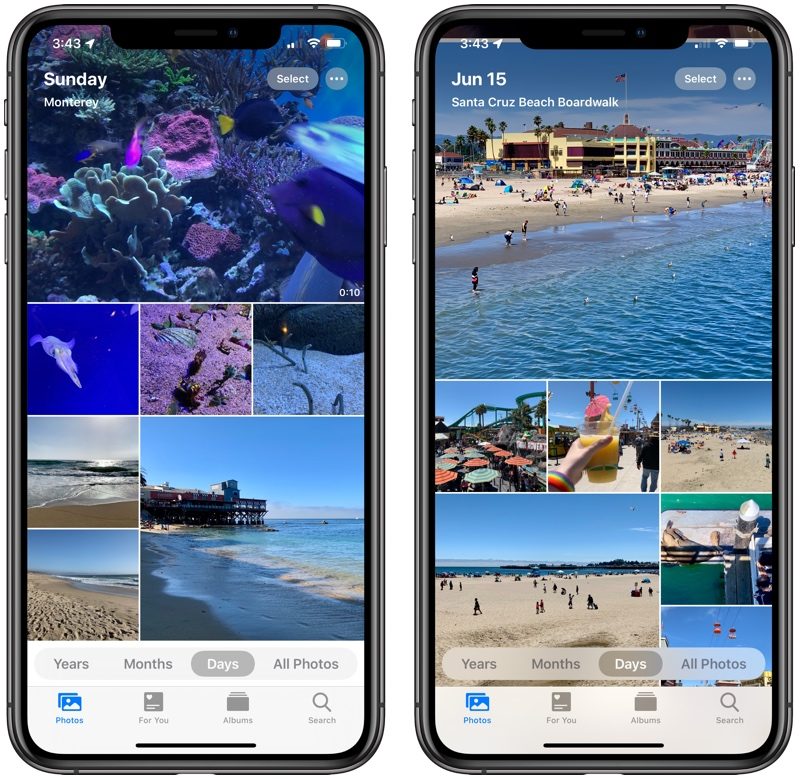
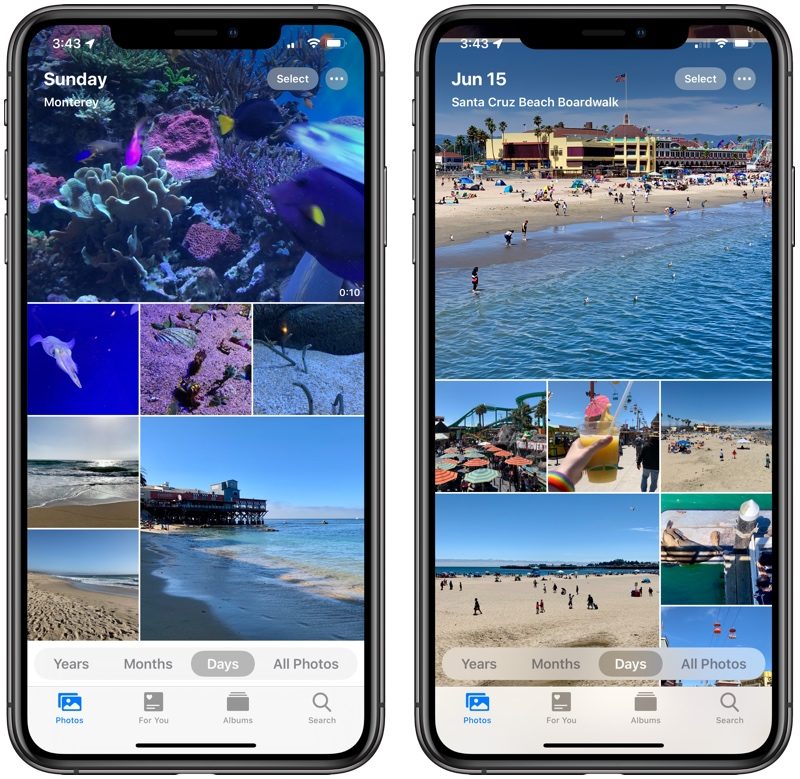
When you open up the Photos app for the first time, it’s going to look a bit different. There are new Years, Months, and Days organizational options you can tap in the main Photos tab.
Apple’s aim with these new sections is to help you find your best photos so you can relive your memories whenever you want.
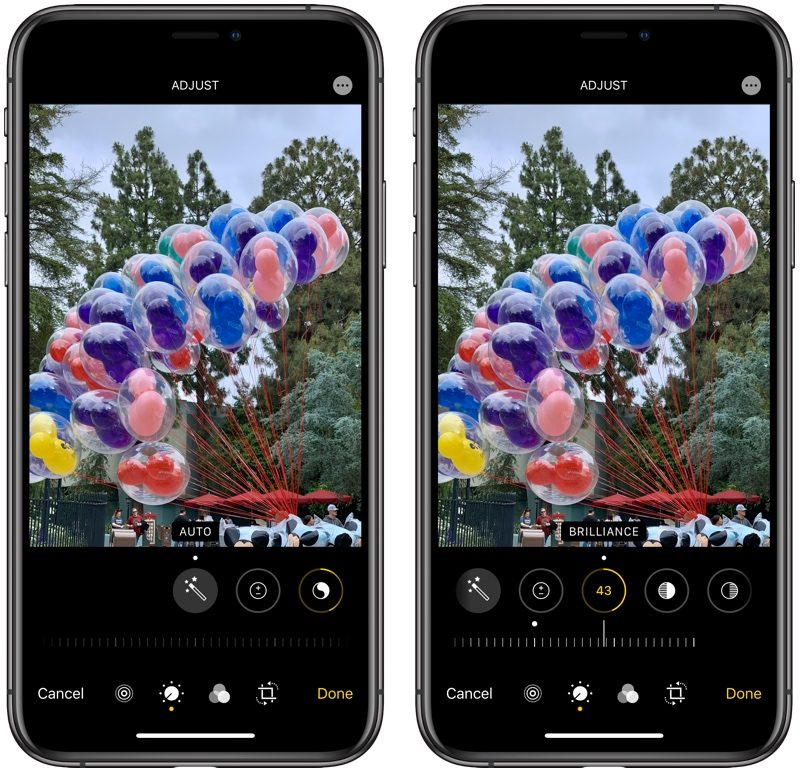
Editing photos looks different too, but all of the options you’re used to are there, with some new editing tools to make your photos look better than ever. You can also edit videos for the first time ever, which is a fun new addition to iOS 13. It works just like editing photos, so it’s a simple and quick way to trim down video footage or add cool effects.
For more on what’s new in the Photos app and how to use all of the new features, make sure to check out our Photos guide.
8. Look Around in Maps
Maps in iOS 13 more or less looks the same, but Apple has continued to expand its redesigned Maps interface with more detail, so you may notice some changes right when you open the app.
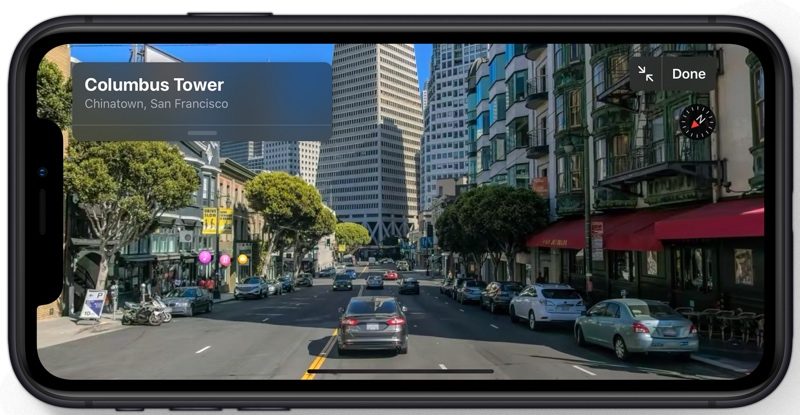
One neat new feature you might want to check out is the “Look Around” option, which is Apple’s equivalent to Google Street View. Look Around lets you get a street level look at what’s around you or what you search for, which is great for scoping out restaurants, shopping, and more.
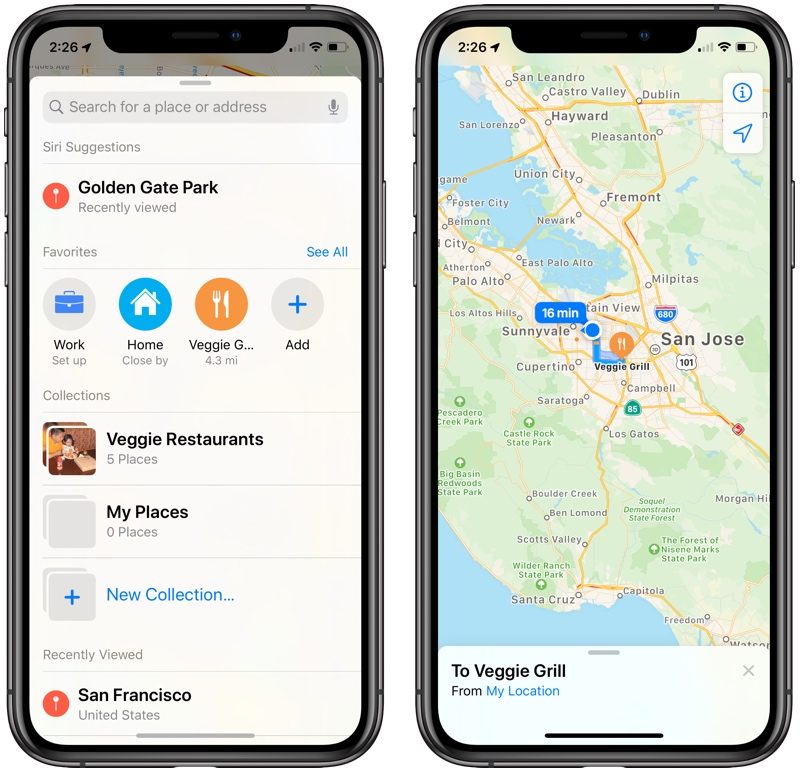
Maps has other neat features like lists of Collections and Favorites, and when Siri gives directions, you’ll notice that they’re much more natural. Siri will say things like “turn left at the next stoplight” instead of “turn left in 500 feet.”
You can install iOS 13 if you have an iPhone SE, iPhone 6s, iPhone 6s Plus, iPhone 7, iPhone 7 Plus, iPhone 8, iPhone 8 Plus, iPhone X, iPhone XR, iPhone XS Max, or iPhone XS (and it’ll come pre-installed on the new 2019 iPhones). It’s not compatible with the iPhone 6 and earlier, so if you have an older iPhone, you’ll need to stick with iOS 12 (or earlier).
If you have an iPad, you need to know that instead of iOS, it’s going to run iPadOS going forward. Don’t worry, though, iPadOS is pretty much identical to iOS 13 and offers all of the same features, with a few other changes designed specifically for the larger screen of the iPad.
For iPads, the new iOS works on iPad Air 2, iPad Air (3rd Gen), iPad mini 4, iPad mini 5, iPad (5th-7th Gen), and any iPad Pro.
We have a lot more information on every new feature in iOS 13, large and small. If you want to learn more about what’s new and what you can expect when installing iOS 13, we recommend reading our full iOS 13 roundup.
Guide Feedback
Have questions about the new features in iOS 13 or want to offer feedback on this guide? Send us an email here.
Apple today shared a new trailer for its upcoming TV show “Dickinson,” which stars Hailee Steinfeld as poet Emily Dickinson.
The show will be one of the first available when Apple TV+ launches this fall, and the new trailer features “Afterlife,” a new song Hailee Steinfeld wrote for the show and released today.
Apple previously released a teaser trailer for “Dickinson,” but today’s version is much longer and gives more insight into the show, which appears to be a drama with comedic elements.
“Dickinson” was one of Apple’s first shows, with the company picking it up back in May 2018. Steinfeld, the show’s star, is known for her roles in “True Grit,” “Pitch Perfect 2,” “Pitch Perfect 3,” “Ender’s Game,” and coming of age film “Edge of Seventeen.”
The series will also star Jane Krakowski (“30 Rock”) as Dickinson’s mother, Toby Huss (“Halt and Catch Fire”) as Dickinson’s father, and Anna Baryshnikov (“Manchester by the Sea”) as Dickinson’s sister.
“Dickinson” will be available when Apple TV+ launches on November 1. Apple TV+ will be priced at $4.99 per month and it will come with a one week free trial.
Apple today seeded a beta of iOS 13.1 that’s designed to work with the iPhone 11, iPhone 11 Pro, and iPhone 11 Pro Max.
The new beta can be installed over-the-air after installing the proper profile from the Apple Developer Center.
With the new iOS 13.1 beta, the new iPhone models released tomorrow will be able to be updated to iOS 13.1. That will allow beta testers who have already upgraded their prior devices to iOS 13.1 to use an iCloud backup to do a data transfer.
An iPhone backup taken on an iPhone running iOS 13.1 cannot be transferred to an iPhone running iOS 13, which means those who have upgraded will need to also upgrade their new 2019 iPhones before being able to restore from a backup.
iOS 13.1 introduces several features that were announced at WWDC but were removed from iOS 13 over the beta testing period. Shortcuts Automations is back, allowing Shortcuts users to create personal and home automations from the Shortcuts app to have actions performed automatically when specific conditions occur.
Share ETA, a major maps feature, is also available once again in iOS 13.1. With Share ETA, you can share your estimated time of arrival to a location with a friend or family member.
Other new features include new icons on the volume indicator when headphones or speakers are connected (with icons for AirPods, Beats headphones, and HomePod), more detailed HomeKit icons in the Home app, and updates to Dynamic Wallpapers.
Mouse support, an accessibility option in iOS 13, has been improved in iOS 13.1 allowing a long press or 3D Touch to be mapped to the right click function of the mouse. Reading goals now include PDFs, Nike+ is now just Nike, and iOS 13.1 supports HEVC video encoding with alpha channels.
There are some other smaller changes in iOS 13.1, which are outlined in our original iOS 13.1 article. iOS 13.1 is set to launch on Tuesday, September 24.
Apple will release the upcoming iOS 13.1 update and iPadOS on September 24 instead of September 30 as previously planned, according to updated information on its iOS 13 and iPadOS preview pages.
Following the company’s September 10 event, Apple initially said that iOS 13.1 and iPadOS would come on Monday, September 30, but the updates will now be just under a week earlier.
The earlier release of iPadOS will allow iPad users to get iOS 13 features on their iPads quicker, with access to Apple Arcade, Dark Mode, and more, while the iOS 13.1 release will bring missing iOS 13 features like Shortcuts Automations and Share ETA.
Apple hasn’t made it clear if there will be an iPadOS 13 release, but given that the update is coming on the same day as iOS 13.1, the first version of iPadOS may be iPadOS 13.1.
Apple today released iOS 13, the newest operating system designed for the iPhone and iPod touch. iOS 13 is available on the iPhone 6s and later and the 7th-generation iPod touch. As with all of Apple’s software updates, iOS 13 is free to download.
The update is available on all eligible devices over-the-air in the Settings app. To access the update, go to Settings > General > Software update. It may take a few minutes for the update to propagate to everyone due to high demand.
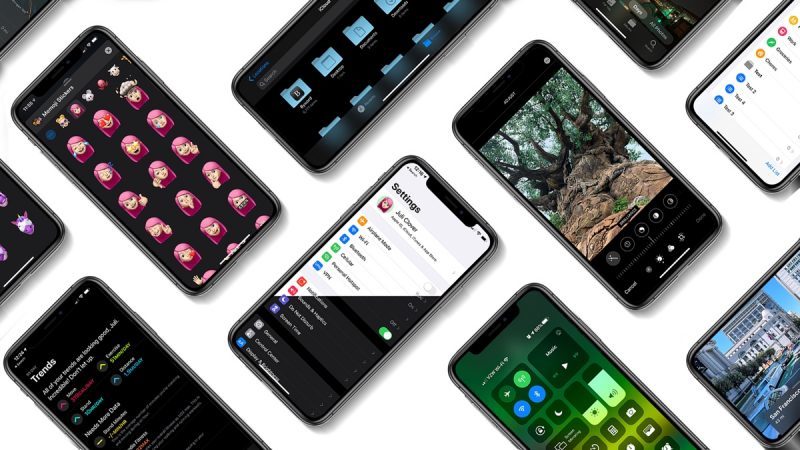
There are a ton of new features in iOS 13, but the most noticeable outward facing change is a new systemwide Dark Mode option that changes the entire look of the operating system from light to dark, darkening everything from system elements to Apple’s apps to third-party apps (when implemented by developers).
Dark Mode can be set manually or it can be set to turn on automatically when the sun sets, with controls and toggles available both in the Settings app and in Control Center.
Apple tweaked several apps, but the Photos app on iPhone got a complete overhaul with a new Photos tab that curates your entire Photos library and shows you a selection of highlights organized by day, month, or year.
There’s a revamped photo editing interface that makes it easier than ever to tweak your images, plus there are new editing tools that put the Photos app on par with more robust third-party photo editing options.
For the first time, you can edit video right in the Photos app too, cropping, rotating, applying filters, and adjusting lighting and color. There’s also a new High-Key Mono lighting effect, and for Portrait Lighting in general, you can now adjust the intensity for more granular control over your edits.
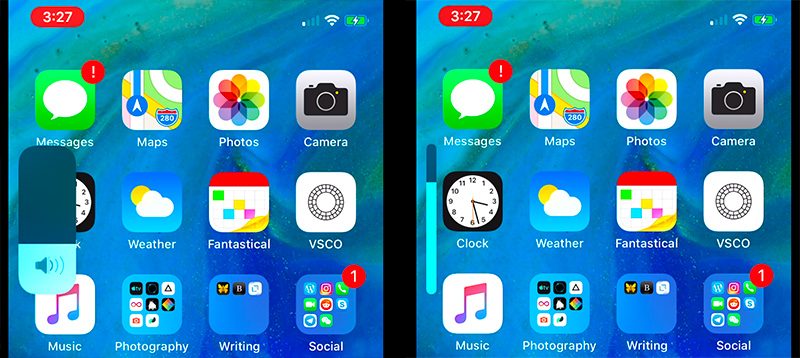
Many iOS users will be thrilled to know that the volume HUD has been tweaked so it’s much less obtrusive, with Apple now displaying the volume bar on the side of the iPhone (or at the top in some cases) so volume controls no longer obscure the middle of the display when you adjust the volume to be louder or quieter.
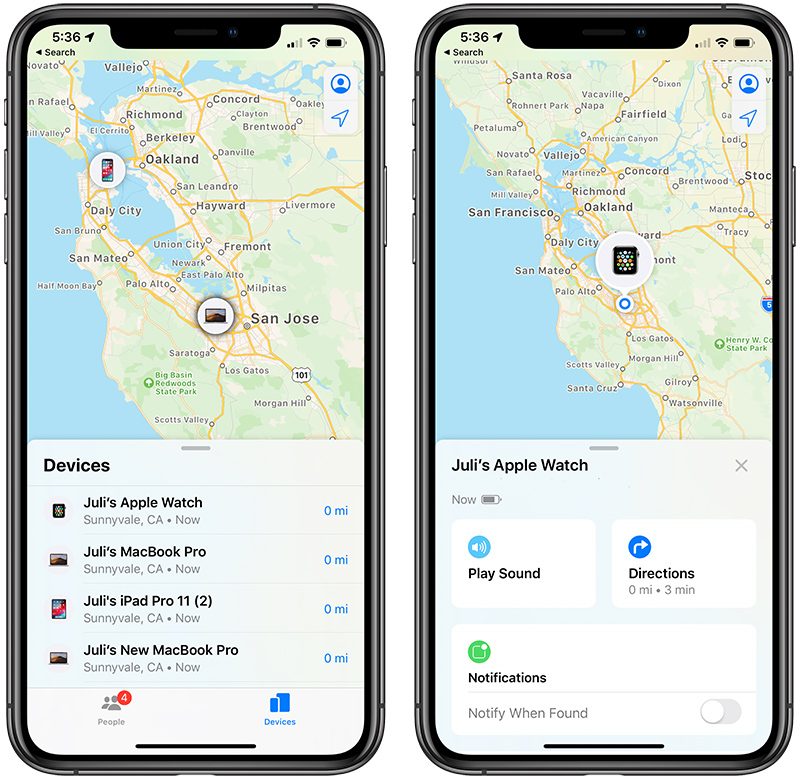
A new Find My app combines the functionality of both Find My iPhone and Find My Friends, offering a one-stop app for finding whatever needs to be found. There’s even a new feature that lets you track your devices when they don’t have an LTE or WiFi connection, using Bluetooth and other nearby devices owned by other people.
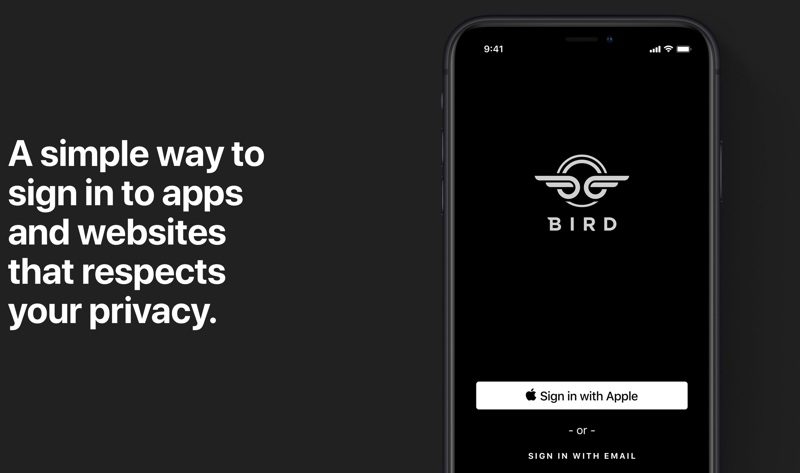
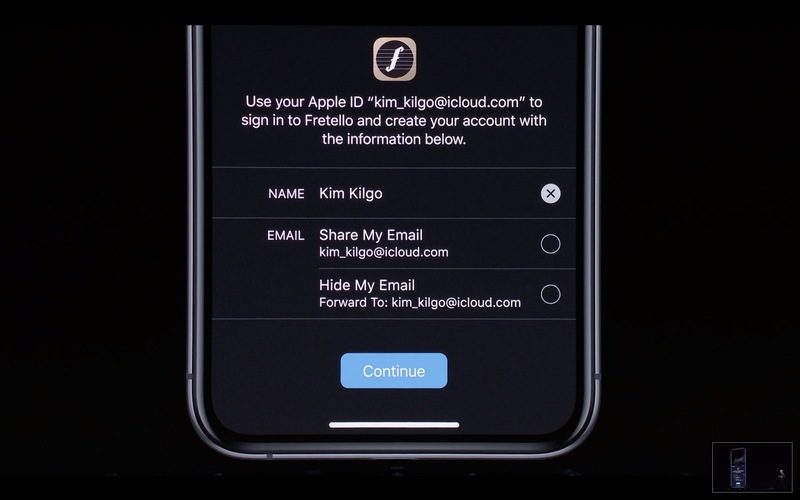
Sign in with Apple, a new privacy feature, gives you a convenient and safe way to sign into apps and websites as an alternative to Facebook and Google sign in options. Apple can even generate single-use randomized emails for you so you don’t have to give out your real info.
Sign in with Apple does require developers to support it, so it will only be available in apps (and websites) where developers have added the feature.
In the Maps app, there’s a neat new street-level “Look Around” mode that’s similar to Google’s Street View option, letting you get a close-up look at whatever is around you or a location that you’ve searched for.
Maps also features Collections and Favorites for saving locations you like and want to get to quickly, and you’ll notice that Siri offers up much more natural directions. There are some other minor Maps tweaks that should make the routing experience much better in iOS 13.
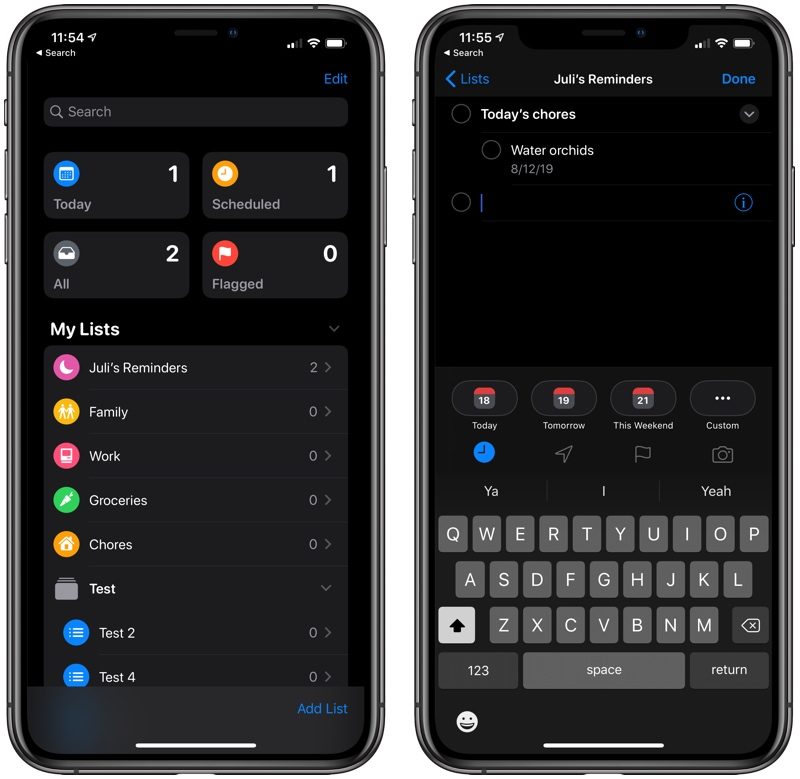
There’s a whole new look for Reminders that makes it more functional than ever, Siri now supports Live Radio features, Safari has an updated start page and new website controls, and the Health app has been overhauled with new noise and menstrual cycle tracking options.
In Messages, there’s a new option to create a profile with a pic and a name that’s shared with people you talk to (though you don’t have to enable it) plus there are new Animoji and Memoji stickers that can be used in Messages and throughout the operating system. With the Memoji option, you can customize your avatar even if you don’t have an iPhone with the TrueDepth camera system.
You can connect multiple sets of AirPods to a single iPhone with iOS 13, which is a neat feature for when you want to share your music with someone else. iOS 13 also brings handoff and multi-user support for the HomePod, allowing it to tell the difference between multiple devices.
CarPlay in iOS 13 has been overhauled with an updated look and all of the new features that are in the Maps app, plus it has a new Music interface, a Calendar app, more natural Siri language, a new Settings app, and support for third-party mapping apps.
You can use a new swipe-based “QuickPath” option when typing on the iPhone keyboard, and there are new gestures for text editing that makes working on your iOS devices easier. The Files app now supports sharing folders and accessing files from external storage devices, and there’s a download manager in Safari.
According to Apple, iOS 13 is faster and more efficient than iOS 12. App update times have improved, app launch times are two times faster, and app download sizes have been reduced by up to 50 percent. If you have a device with Face ID, it will unlock up to 30 percent faster after installing the update.
There are important new privacy controls that limit the location data shared with apps so you can better protect your location data from apps that might misuse it, and Apple is making HomeKit cameras more secure with a Secure Video feature that offers on-device analysis and encrypted iCloud access. HomeKit is also being added to select routers.
Apple’s release notes for the update are below:
iOS 13 introduces a dramatic new look for iPhone with Dark Mode, new ways to browse and edit photos, and a private new way to sign in to apps and websites with just a tap. iOS 13 is faster and more responsive with optimizations across the system that improve app launch, reduce app download sizes and make Face ID even faster.
This update introduces new features and improvements to:
Dark Mode
– A beautiful new dark color scheme that delivers a great viewing experience especially in low-light environments
– Can be scheduled to turn on automatically at sunset, at a certain time, or turned on from Control Center
– Four new system wallpapers that automatically switch appearances with Light and Dark Mode
Camera & Photos
– An all-new Photos tab with a curated view of your library making it easy to find, relive, and share your photos and videos
– Powerful new photo editing tools that make it easier to edit, adjust, and review photos at a glance
– Video editing with over 30 new tools, including Rotate, Crop, and Enhance
– The ability to increase or decrease Portrait Lighting intensity on iPhone XR, iPhone XS and iPhone XS Max
– High-Key Light Mono, a new Portrait Lighting effect, for a monochromatic portrait with a white background on iPhone XR, iPhone XS and iPhone XS Max
Sign in with Apple
– A private way to sign in to participating apps and websites with the Apple ID you already have
– Simple account setup with only your name and email address
– Hide My Email to share a unique email address that is automatically forwarded to you
– Built-in two-factor authentication to protect your account
– No tracking or profiling by Apple as you use your favorite apps
– Unlimited access to groundbreaking new games with one subscription, no ads or additional purchases
– An all-new Arcade tab in the App Store to browse the latest games, personalized recommendations, and exclusive editorial content
– Available to play across iPhone, iPod touch, iPad, Mac, and Apple TV
– Option to download large apps over your cellular connection
– Ability to view available app updates or delete apps from the Account page
– Support for Arabic and Hebrew
Maps
– An all-new map rolling out in the US featuring broader road coverage, improved
address precision, better support for pedestrians, and more detailed land cover
– Look Around to explore cities in a high-resolution, interactive 3D experience
– Collections for the lists of places you love and can easily share with friends and family
– Favorites for quick and easy navigation to the places you visit daily
– Real-time transit, real-time flight updates and more natural spoken turn-by-turn directions
Reminders
– All-new design with more powerful and intelligent ways to create and organize reminders
– Quick toolbar to add dates, locations, flags, attachments and more to reminders
– New smart lists–Today, Scheduled, Flagged and All–to easily keep track of upcoming reminders
– Subtasks and grouped lists to organize your reminders
Siri
– More natural Siri voice, particularly while speaking longer phrases
– Personalized Siri Suggestions in Apple Podcasts, Safari, and Maps
– Over 100,000 live radio stations from around the world available with Siri
– Shortcuts app now built-in
Memoji and Messages
– New Memoji customization options including new hairstyles, headwear, makeup, and piercings
– Memoji sticker packs in Messages, Mail, and third‑party apps and available on all iPhone models
– Your name and photo, or even Memoji, now optionally shared with your friends
– Search enhancements to easily find messages with intelligent suggestions and categorization of results
CarPlay
– All-new CarPlay Dashboard with your tunes, turns, and smart Siri suggestions on one screen
– All-new Calendar app with a view of your day, option to drive to or dial in to meetings, and contact meeting organizers
– Apple Maps redesign with Favorites, Collections, and Junction View for China
– Apple Music album art to easily find your favorite song
– Do Not Disturb while driving now available in CarPlay
Augmented Reality
– People Occlusion for apps to place virtual objects naturally in front or behind people using iPhone XR, iPhone XS and iPhone XS Max
– Motion Capture for apps to understand the body position and movement of a person so you can animate a character or interact with virtual objects using iPhone XR, iPhone XS and iPhone XS Max
– Multiple face tracking for AR content on up to 3 faces at a time so you can have fun with your friends using iPhone XR, iPhone XS and iPhone XS Max
– AR Quick Look to view and interact with multiple AR objects at the same time
Mail
– Block sender to move all email messages from a blocked sender directly to the trash
– Mute thread to stop notifications from an overly active email thread
– Format bar with easy access to rich text formatting tools and attachments of all kinds
– Font support for all system fonts, as well as new fonts you download from the App Store
Notes
– Gallery view with your notes as visual thumbnails helping you find the note you need
– Shared folders to collaborate with others giving them access to entire folders of notes
– More powerful search for visual recognition of images inside your notes and text in items you’ve scanned
– New checklist options to easily reorder checklist items, indent them, or move checked items to the bottom of the list automatically
Safari
– Updated start page with favorites, frequently visited, most recently visited websites, and Siri suggestions
– View options in the Smart Search field for quick access to text size controls, Reader view, and per‑site settings
– Per‑site settings to choose Reader view, and enable content blockers, camera, microphone, and location access for individual websites
– Download manager
QuickPath
– Slide to type on the keyboard for easier one-handed typing when you’re on the go
– Slide or tap to type interchangeably, even mid‑sentence
– Alternate word options in the predictive bar
Text Editing
– Scrollbar scrubbing to directly drag the scrollbar for quickly navigating long documents, web pages, and email conversations
– Faster and more precise cursor navigation–just pick it up and move it to where you want
– Text selection improvements for easier selection by just tapping and swiping on the text
Fonts
– Custom fonts are available from the App Store for use in your favorite apps
– Font management in Settings
Files
– External drives supported in Files to access and manage files on a USB drive, SD card, or hard drive
– SMB support to connect to a server at work or a home PC
– Local storage for creating folders on the local drive and adding your favorite files
– Zip and Unzip support for creating and expanding Zip files
Health
– New Summary view of personalized data, including alerts, favorites, and relevant highlights from frequently used apps and devices
– Highlights of health data from frequently used apps and devices showing trends over time in helpful charts and graphs
– Cycle Tracking feature to log information about your menstrual cycle including flow level, symptoms, and fertility metrics
– Hearing health data types for environmental audio levels from the Noise app on Apple Watch, headphone audio levels, and audiograms from hearing tests
Apple Music
– Time-synced lyrics make listening more fun with perfectly timed lyrics
– Over 100,000 live radio stations from around the world
Screen Time
– 30-day usage data to compare Screen Time numbers over the previous weeks
Combined limits to include multiple app categories, specific apps, or websites in one limit
– “One more minute” option to quickly save your work or log out of a game when a Screen Time limit is met
Privacy and Security
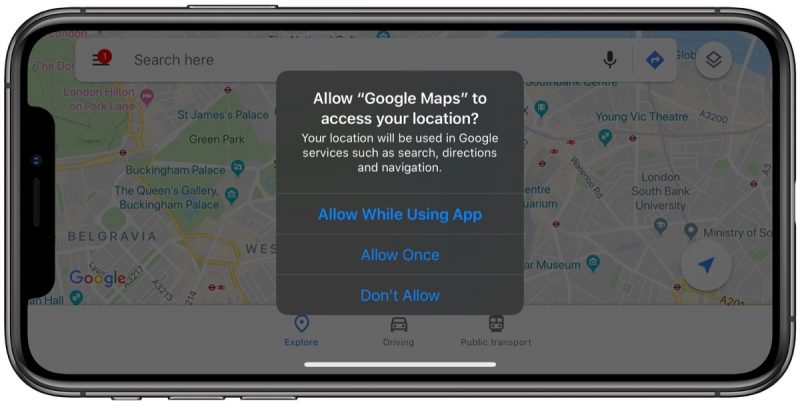
– Allow Once location permission with the option to share your locations with apps only once
– Background tracking alerts now notify you when an app is using your location in the background
– Wi-Fi and Bluetooth enhancements help prevent apps from accessing your location without your consent
– Location sharing controls give you the option to easily omit location data when sharing photos
System Experience
– Wi‑Fi networks and Bluetooth accessories selection in Control Center
– A redesigned, unobtrusive volume control in the upper-left corner
– Full-page screenshots for web pages, Mail messages, iWork documents, and Maps
– Redesigned share sheet with intelligent suggestions to share content with just a few taps
– Dolby Atmos playback for a thrilling surround sound experience from content with Dolby Atmos, Dolby Digital, or Dolby Digital Plus soundtracks on iPhone XR, iPhone XS and iPhone XS Max
Language support
– Support for 38 new keyboard languages
– Predictive input in Cantonese, Dutch, Hindi (Devanagari), Hindi (Latin), Najdi Arabic, Swedish, and Vietnamese keyboards
– Separate emoji and globe keys make it easier to quickly switch between languages and select emoji on iPhone X and later
– Automatic language detection for dictation
– Bilingual dictionary support in Thai and English and Vietnamese and English
China
– A dedicated QR code mode in Camera, accessible from the Control Center, for improved QR code performance, a flashlight option, and enhanced privacy
– Junction View in Maps for drivers in China to more easily navigate complex roadways
– Adjustable handwriting area on the Chinese keyboard
– Cantonese predictions on the Cangjie, Sucheng, Stroke, and Handwriting keyboards
India
– All‑new Indian English male and female Siri voices
– Support for all 22 official Indian languages with the addition of 15 new keyboard languages
– Bilingual keyboard for Hindi (Latin) and English keyboard, including typing predictions
– Typing predictions on the Hindi (Devanagari) keyboard
– New Indian language system fonts for Gujarati, Gurmukhi, Kannada, and Odia for greater clarity and ease when reading in apps
30 new document fonts for Assamese, Bangla, Gujarati, Hindi, Kannada, Malayalam, Marathi, Nepali, Odia, Punjabi, Sanskrit, Tamil, Telugu, and Urdu
– Contacts with hundreds of new relationship labels to help more accurately label your contacts
Voice Control
– A new way to control your iOS devices, entirely with your voice
– Comprehensive navigation with just your voice to open apps, search the web, tap, swipe, pinch, zoom, press the Home button and more
– Accurate dictation using the Siri speech recognition engine
– Rich text editing to make corrections using just your voice, or select from word and emoji suggestions
– Custom words, such as legal or medical terms, to ensure Voice Control recognizes words you commonly use
– Seamless transitions from text dictation to voice commands
– Attention Awareness to keep Voice Control off when you turn your head away from True Depth camera on supported iPhone models
– On‑device processing so your personal data is kept private
Performance
– Up to 2x faster app launch*
– Up to 30 percent faster Face ID unlocking on iPhone X, iPhone XR, iPhone XS, iPhone XS Max
– 60 percent smaller app updates on average*
– Up to 50 percent smaller apps from the App Store*
Other features and improvements
– Silence unknown callers to get calls from known numbers in Contacts, Mail, and -Messages, while sending all other calls to voicemail
– Optimized battery charging to slow the rate of battery aging by reducing the time your iPhone spends fully charged
– Low Data Mode to reduce your data usage over your cellular network or specific Wi-Fi networks you select
– PlayStation 4 and Xbox Wireless Controller support
– Find My iPhone and Find My Friends combined into a single app with the ability to locate a missing device even if it can’t connect to a Wi-Fi or cellular network
– Apple Books reading goals help make reading a daily habit
– Apple News+ options to remove downloaded issues, follow a title, or browse the back catalog from the More button in the My Magazines section
– Stocks app with business stories from Apple News+
– Calendar supports adding attachments to events
– Family sharing hotspot for your family’s devices to automatically connect to your nearby iPhone personal hotspot
– Home app redesigned controls for HomeKit accessories with a combined view for ones with multiple services
There are a ton of other major new features that are included in iOS 13, so it’s worth reading through our iOS 13 roundup to get a complete overview of what’s new. iPad users should also take a look at our iPadOS roundup, as iPadOS, the operating system for the iPad, is set to come out later this month.
Along with the key features, there are dozens of smaller but still notable changes that are worth knowing, and many of these can be found in our separate tidbits article.