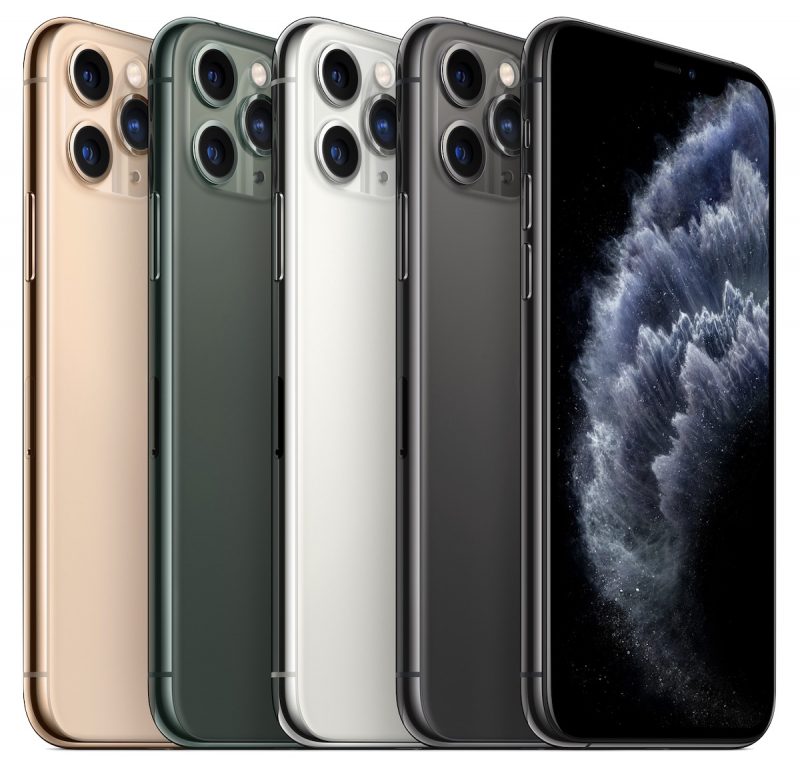
Burst Mode refers to when the camera on your iPhone captures a series of photos in rapid succession, at a rate of ten frames per second. It’s a great way to shoot an action scene or an unexpected event, since you’re always more likely to end up with the picture you were aiming for.
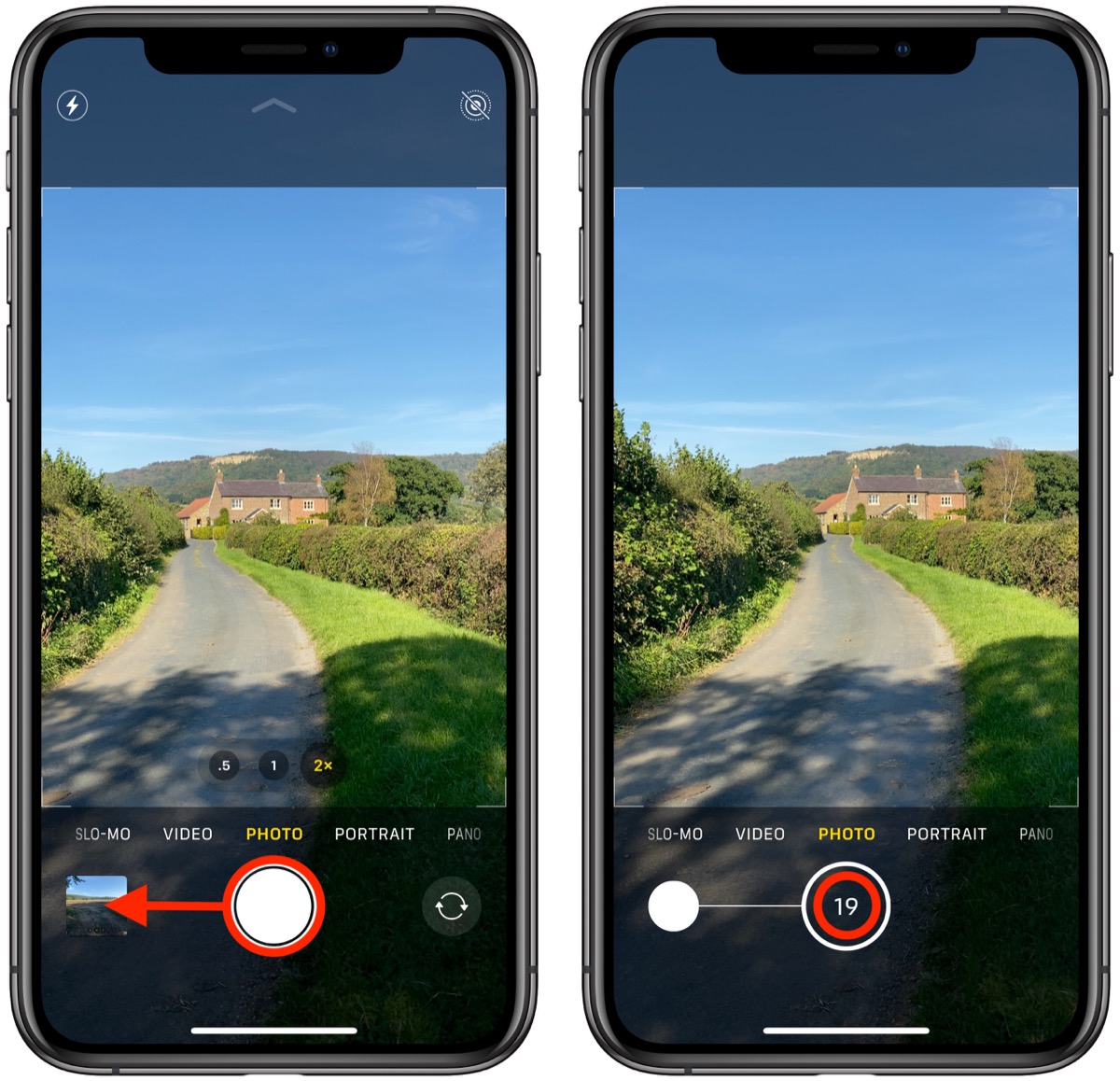
Apple has changed the way Burst Mode works in its redesigned Camera app for iPhone 11 and iPhone 11 Pro devices. On older iPhones and on iPads, you simply tap and hold the shutter button at the bottom of the Camera interface for the duration of the scene that you’re trying to capture.
However, on the iPhone 11 series you have to press the shutter button and drag it towards the square displaying the last image you shot. The shutter will stretch elastically under your finger as you do.
Notice that the counter increases in the shutter’s original position for as long as you hold it down. This indicates how many shots are being captured in the current burst. Simply take your finger off the shutter when you want to end the burst of shots.
When you take a series of burst photos, they automatically appear in the Photos app under the Album name Bursts. You’ll also find them in your main Photo Library. To learn how to view and select the best of your Burst photos in the Photos app, click here.
Apple’s Portrait Mode has become a popular way of taking impressive shots using a depth-of-field effect known as bokeh, allowing iPhone users to shoot a photo that keeps the subject sharp with a blurred background.
And now, exclusive to the iPhone 11 Pro and iPhone 11 Pro Max thanks to the triple-lens camera, you can switch between focal lengths in Portrait mode to get the best shot for your chosen scene.
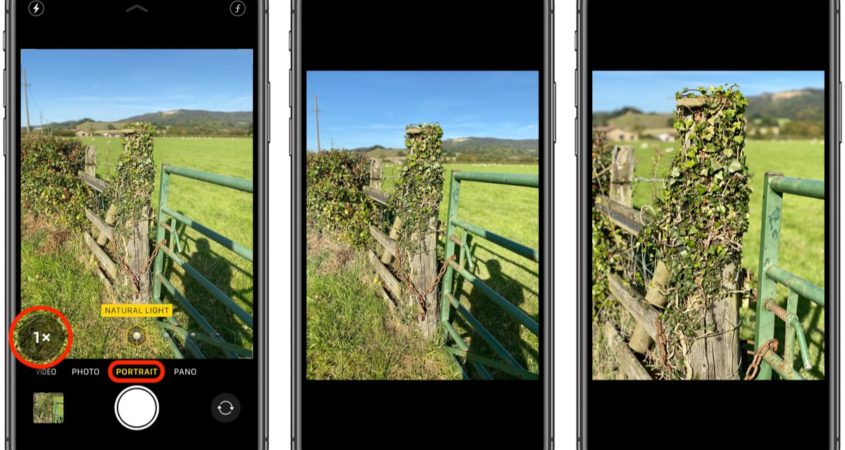
To use Portrait Mode, open the Camera app and swipe to Portrait mode. Portrait Lighting effects will appear at the bottom of the viewfinder.
To change the focal length, tap the circular 1x button in the bottom-left of the viewfinder. 1x corresponds to the wide lens, and 2x switches to the telephoto lens.
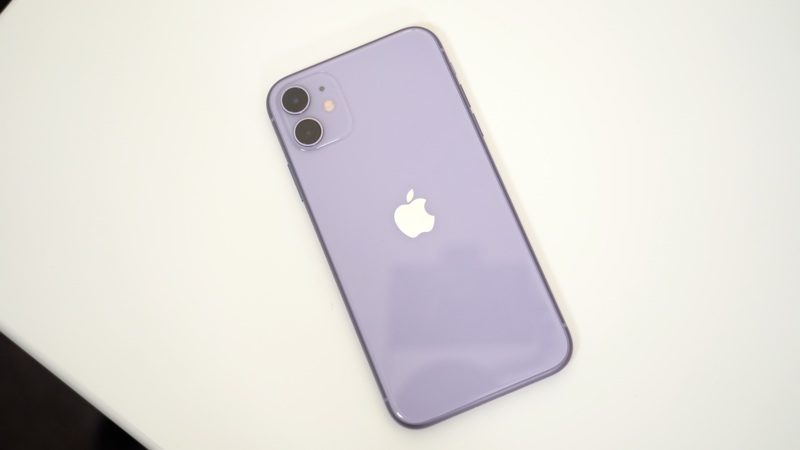
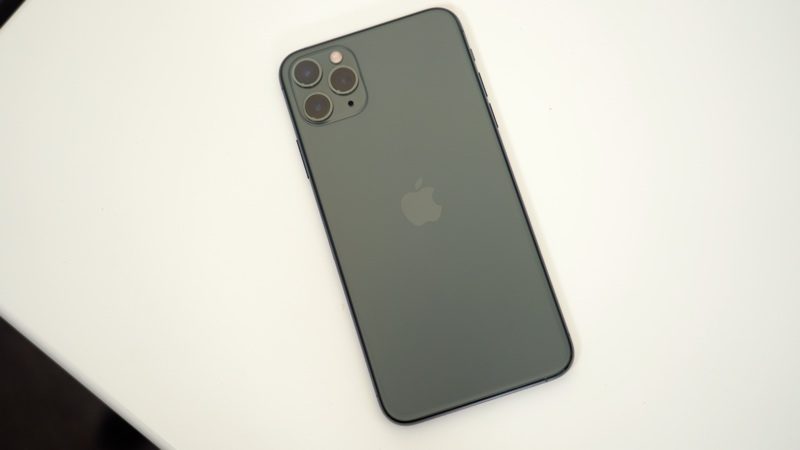
You can see the difference between the two modes in the second and third images above, but in general the 2x mode seems to be better for capturing people, while the 1x lens is better for shooting smaller objects.
Apple has widened the aperture of the iPhone 11 Pro‘s telephoto lens to f/2.0 from f/2.4 in the iPhone X and XS. This allows more light to hit the sensor, which should translate to better Portrait Mode results in lower lighting conditions.
Don’t forget, you can now also switch to the front-facing camera and get a selfie in Portrait Mode, too.
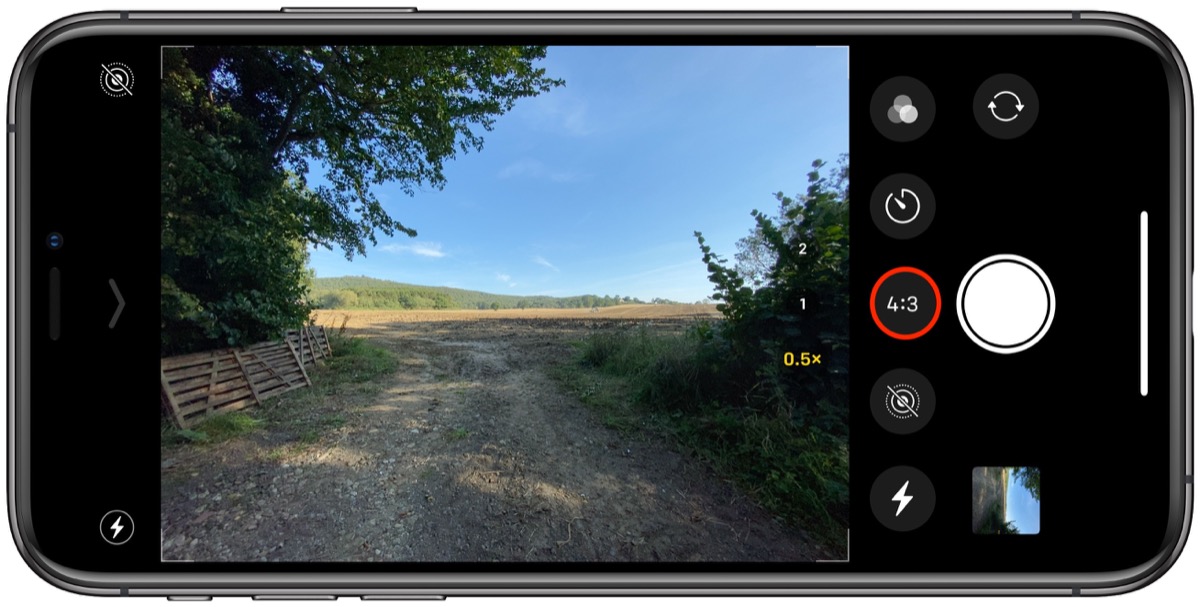
Apple has redesigned the native Camera app on the iPhone 11 and iPhone 11 Pro to make space for the various additional shooting options available in its new flagship phones, and one particularly welcome change is the introduction of different aspect ratio shooting modes.
As it exists on earlier iPhones, the Camera app offers only a single 1:1 aspect ratio shooting mode called Square, for taking Instagram-style shots, meaning users can only select different ratios later in the editing mode of the Photos app.
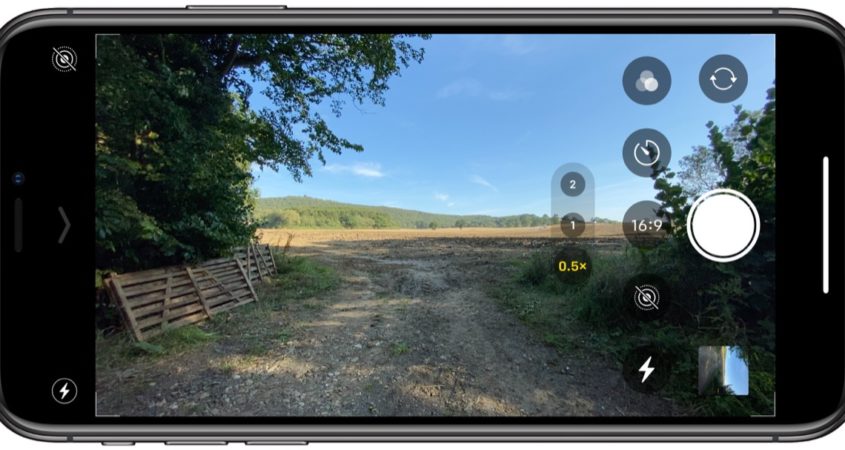
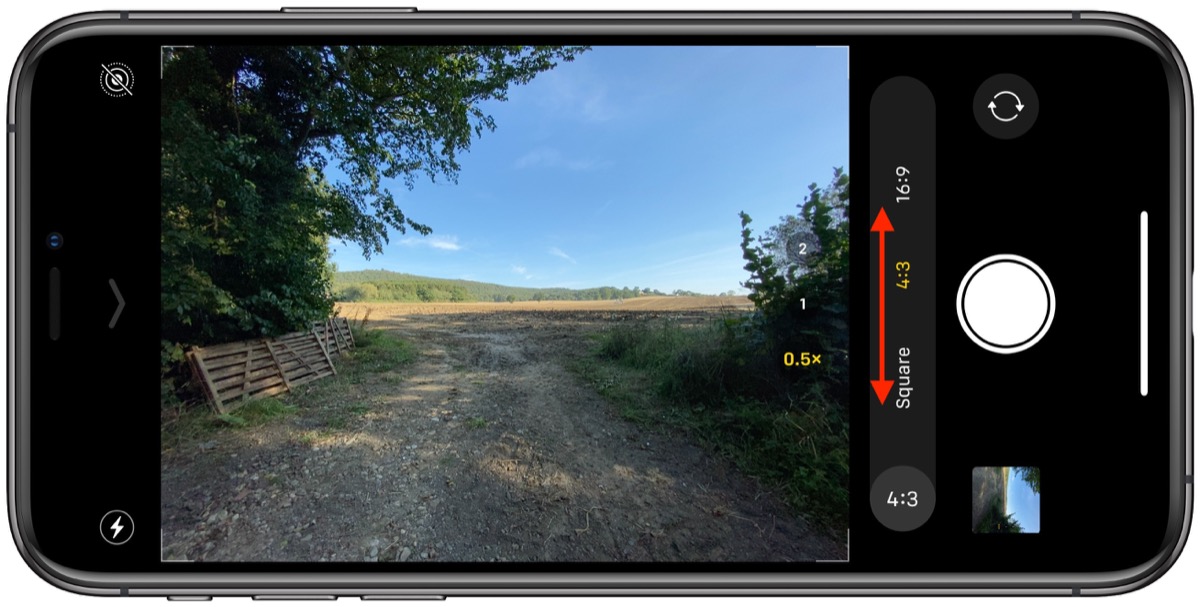
However, on iPhone 11, iPhone 11 Pro, and iPhone 11 Pro Max, users can choose between three aspect ratio options when shooting in the Camera app: 1:1, 4:3, and 16:9. To get to the different shooting modes, follow these steps.
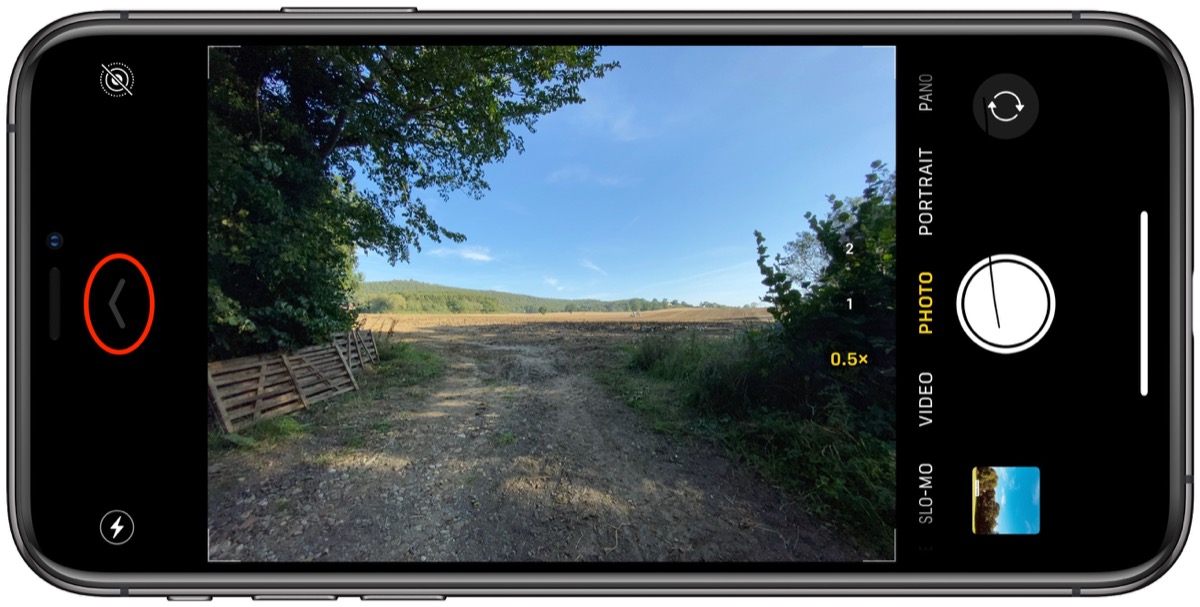
Launch the Camera app, then tap the chevron at the top of the viewfinder (or to the side of it, if you’re shooting in landscape) to reveal the hidden drawer.
Tap the 4:3 button in the toolset that appears directly below (or to the side of) the viewfinder.
Select your preferred aspect ratio from the expanded 4:3 button menu.
Proceed to take your shot.
Note that the 1:1 and 16:9 ratios are non-destructive. In other words, you can re-crop them in the editing window if you later decide you want to return to the typical 4:3 frame.
Apple’s massive launch week has come to a close, with the iPhone 11, iPhone 11 Pro, iPhone 11 Pro Max, and Apple Watch Series 5 all debuting on Friday. And as if that wasn’t enough, Thursday saw the release of iOS 13, watchOS 6, and Apple Arcade on the software side.
Read on below for a recap of this week’s biggest stories about these launches and more!
Hands-On With the New iPhone 11 and iPhone 11 Pro Max
Apple Watch Series 5 Review Roundup: Always-On Display Was Much Awaited, But Little Else Warrants Upgrading From Series 4 Models
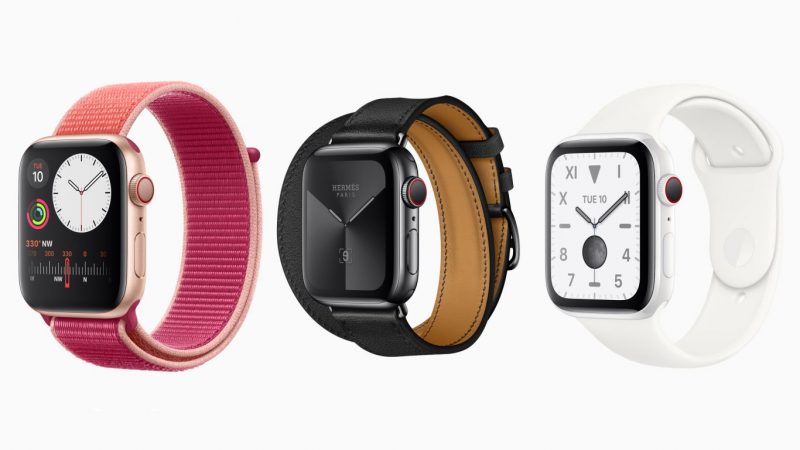
In addition to the new iPhones, Apple’s latest Apple Watch launched this week, and based on early media reviews, most people are happy with the long-awaited always-on display, but little else is new with the latest models.
Other features include a new built-in compass, an expanded 32GB of internal storage, international emergency calling on cellular models, and new ceramic and lighter-weight titanium finishes.
Apple this week widely released iOS 13 for all compatible iPhone and iPod touch devices. Update now by going to Settings > General > Software Update and then be sure to watch our video walkthrough of all the best new features and improvements now available. And if you want to cut right to the chase, check out our video sharing eight tips on what to try out and set up first after you upgrade.
watchOS 6 has also been widely released, bringing a dedicated App Store and more to the Apple Watch Series 3 and newer. The update will be available for Series 1 and Series 2 models later this fall.
In the United States, pricing is set at $4.99 per month, with a one-month free trial available. With Family Sharing, a family of up to six members can access Apple Arcade with a single subscription.
Apple Arcade launched with access to dozens of games and more being added nearly every day, with no ads or in-app purchases. In addition to iOS, the service will be made available on macOS and tvOS within the coming weeks. Read our Apple Arcade guide for more details.
iPad Pro With Triple-Lens Camera System’s ‘Final Design’ Possibly Revealed
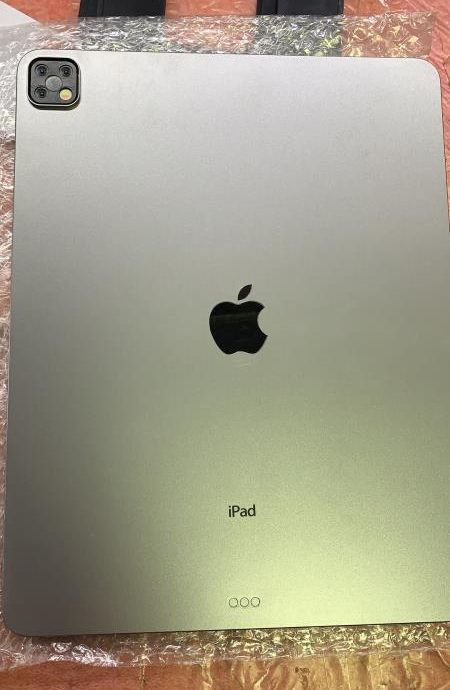
In line with the iPhone 11 Pro models, rumors suggest Apple may extend a triple-lens rear camera system to the iPad Pro soon.
This week, we got our first look at what is said to be the “final design” of the triple-lens camera system coming to the iPad Pro, courtesy of a dummy model shared on leaker Sonny Dickson’s website.
Each week, we publish an email newsletter like this highlighting the top Apple stories, making it a great way to get a bite-sized recap of the week hitting all of the major topics we’ve covered and tying together related stories for a big-picture view.
With the arrival of the iPhone 11, iPhone 11 Pro and iPhone 11 Pro Max, Apple has introduced an optional new camera feature in iOS 13 that’s designed to allow you to correct the alignment of photos and videos without having to resort to cropping.
Basically, when you take pictures or video using either the wide lens or (on the 11 Pro series) the telephoto lens, the camera will simultaneously shoot or record using the next widest sensor. So the wide lens is active when you shoot with the telephoto lens, and the ultra-wide is active when you shoot with the wide.
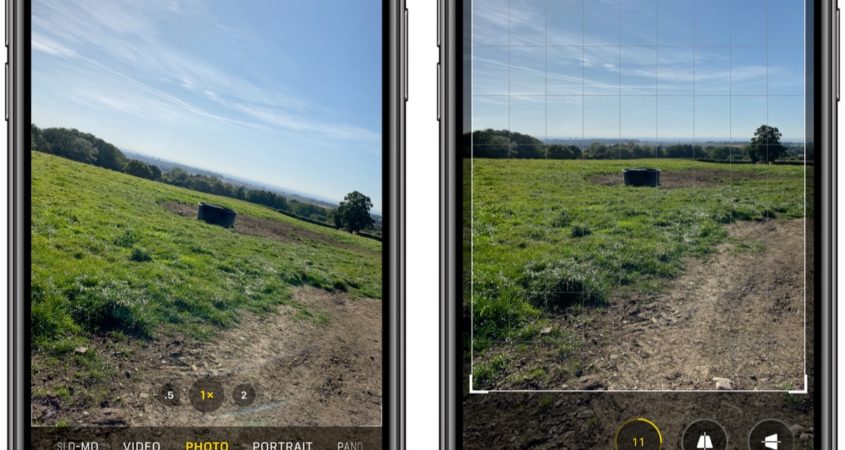
With the feature enabled, you can take your shot, tap Edit in the preview window, tap the Crop tool, then select Straighten, and you’ll be able to use the area captured outside the frame of the photo or video to fix the horizon and improve the composition of the shot without needing to crop it.
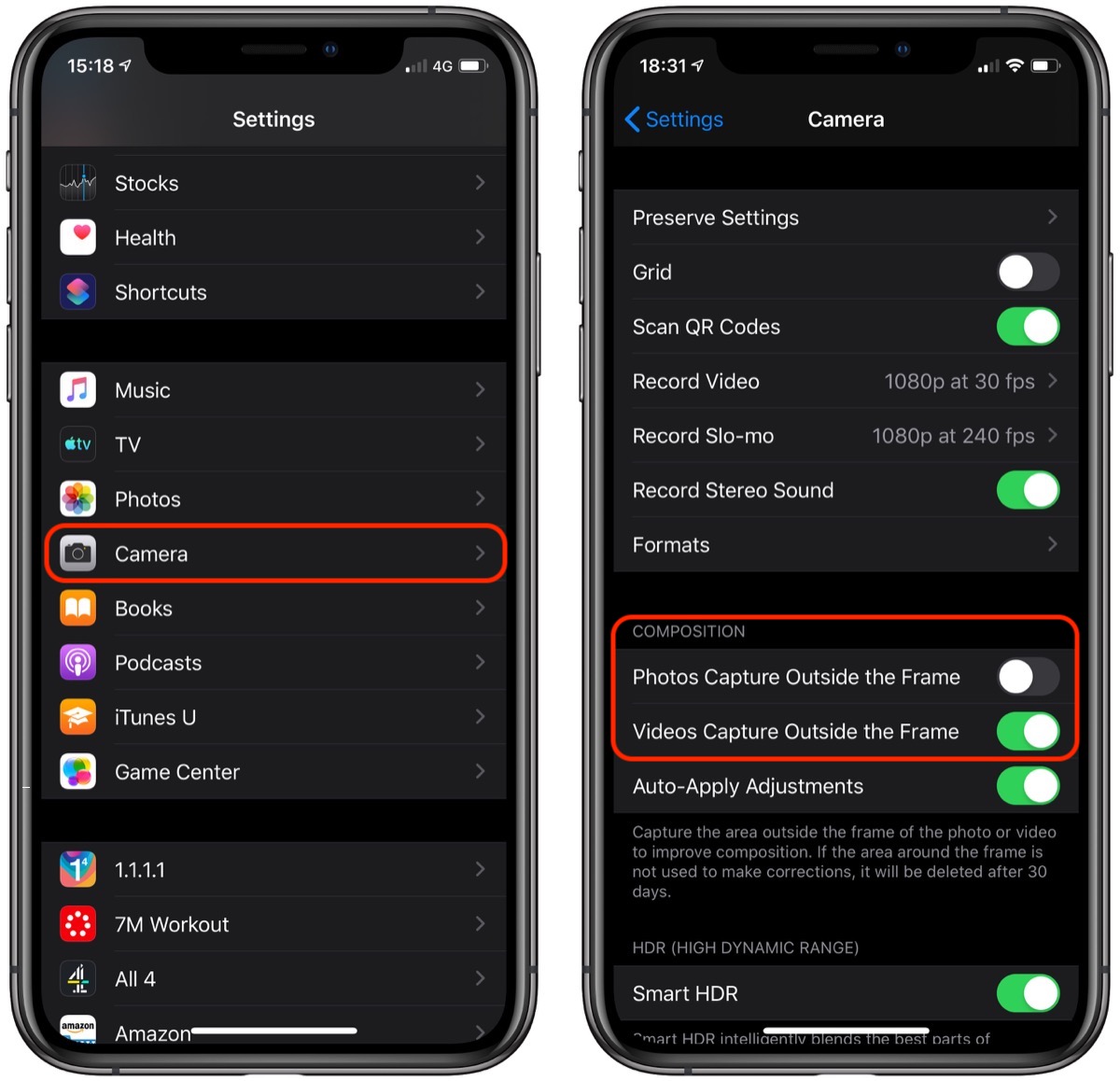
The toggle switches that control this behavior can be found in the Settings app, under Camera -> Photos Capture Outside the Frame and Camera -> Videos Capture Outside the Frame.
Apple has disabled it by default for photos, so you’ll need to turn it on to take advantage of it. Note that it is enabled by default for video, so you may want to disable it if iPhone or iCloud storage space is a concern. That said, if the area around the frame isn’t used to make corrections, it will be automatically deleted after 30 days.
It’s iPhone launch day, which means the new iPhone 11, iPhone 11 Pro, and iPhone 11 Pro Max are now in the hands of customers.
We picked up a new iPhone 11 and an iPhone 11 Pro Max for an unboxing and quick first impressions overview to give MacRumors readers who are still considering a purchase or waiting on their new phone a look at the updated devices.
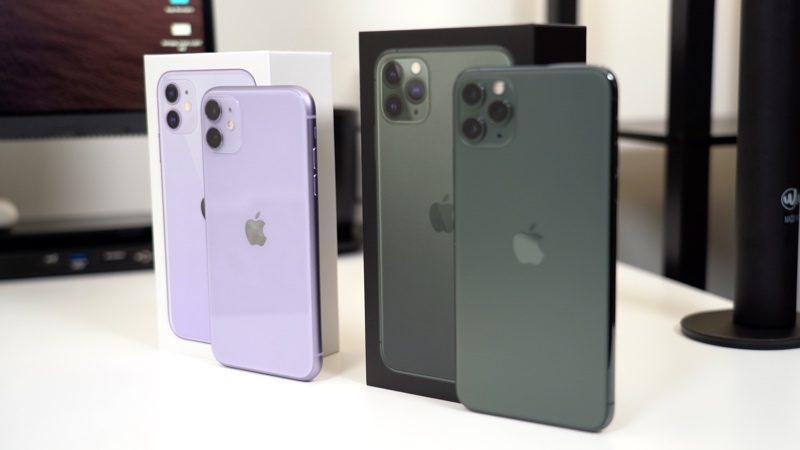
Our iPhone 11 Pro Max is in midnight green, the popular new color that sold out within just a few minutes after preorders went live. Midnight green is greener on camera than it looks in real life, and in some lighting, it’s quite similar to space gray.
This is the first new color Apple has introduced for its high-end iPhone in years, and it’s a rather safe choice because of its subtlety. There’s also a new matte finish on the Pro models, which gives them a frosted look.
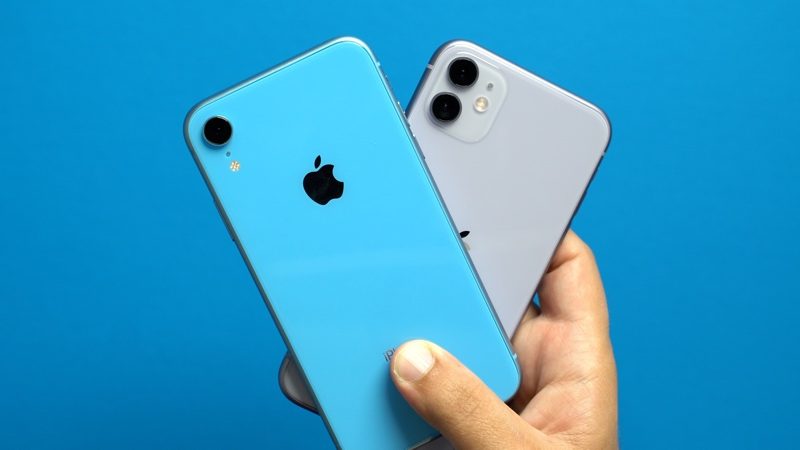
Apple introduced two new iPhone 11 colors this year: purple and green. Our iPhone 11 is the purple color, which is a soft lavender shade that’s quite pretty.
Unboxing the new iPhones is standard procedure and there’s nothing that jumps out as new, but the iPhone 11 Pro Max (and the 11 Pro) come with a new 18W USB-C charger and a USB-C to Lightning cable instead of the traditional 5W charger.
With that new 18W cable, the iPhone 11 Pro and Pro Max support fast charging right out of the box. You can charge an iPhone 11 Pro or Pro Max to 50 percent in 30 minutes. The iPhone 11, of course, supports the same fast charging, but it still ships with a 5W charger and a standard USB-A to Lightning cable.
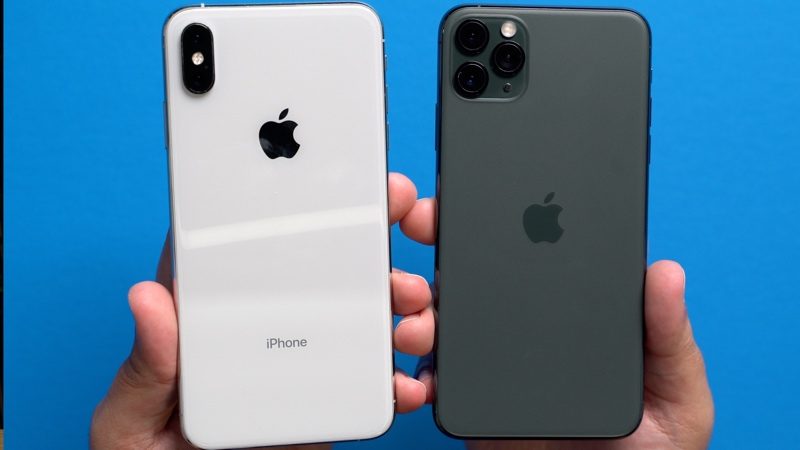
The iPhone 11 Pro Max is heavier than the iPhone XS Max, and just a bit thicker. The extra weight isn’t too noticeable, but it’s worth noting that the Pro Max is Apple’s heaviest iPhone to date. All that weight is attributable to a thicker, heavier battery and a major increase in battery life – the iPhone 11 Pro Max lasts 5 hours longer than the XS Max, and the 11 Pro lasts 4 hours longer than the XS.
Apple’s iPhone 11 also has a longer battery life than the previous-generation iPhone XR, but it’s just an hour longer because the XR already had pretty awesome battery life.
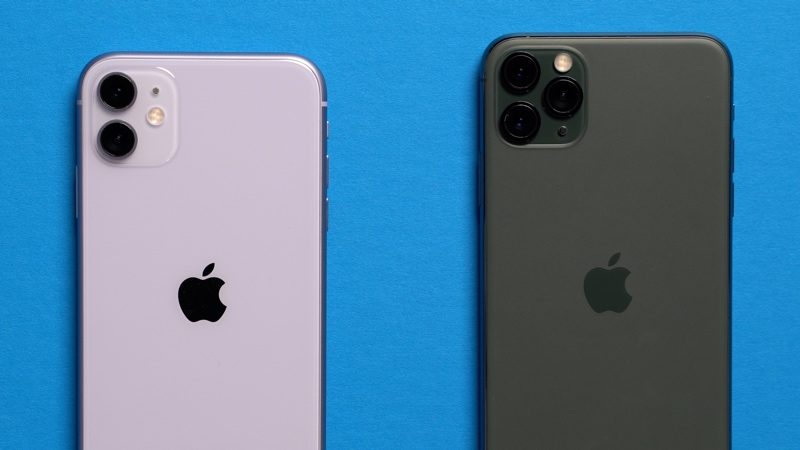
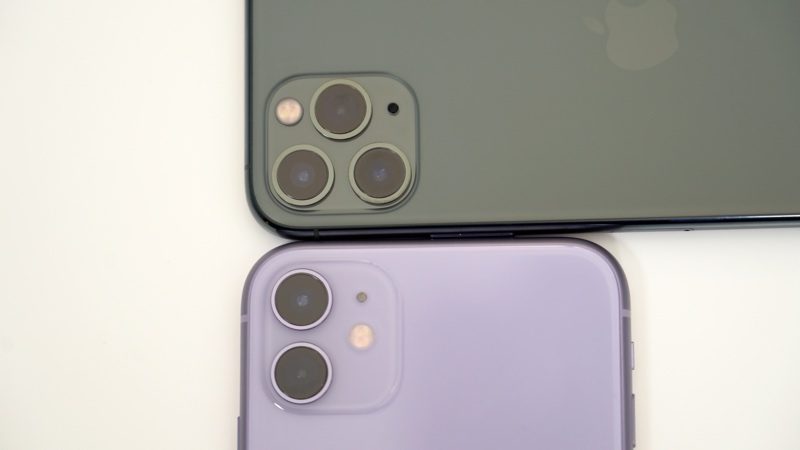
The iPhone 11 Pro Max looks similar to last year’s iPhone XS Max from the front, but the back stands out because of the new triple-lens camera system and the relocated Apple logo, which is now in the center. There was some chatter that the logo was relocated for bilateral wireless charging, but that’s ultimately not a feature that the iPhones launched with.
There’s also a new dual-lens camera in the iPhone 11, so it too looks different from last year’s iPhone XR. The new camera in both iPhones is an ultra wide-angle camera lens that lets you get super wide shots for landscapes, taking photos of architecture, and, well, anything else. It’s a neat new camera feature and we’re going to delve into it more in a dedicated camera video.
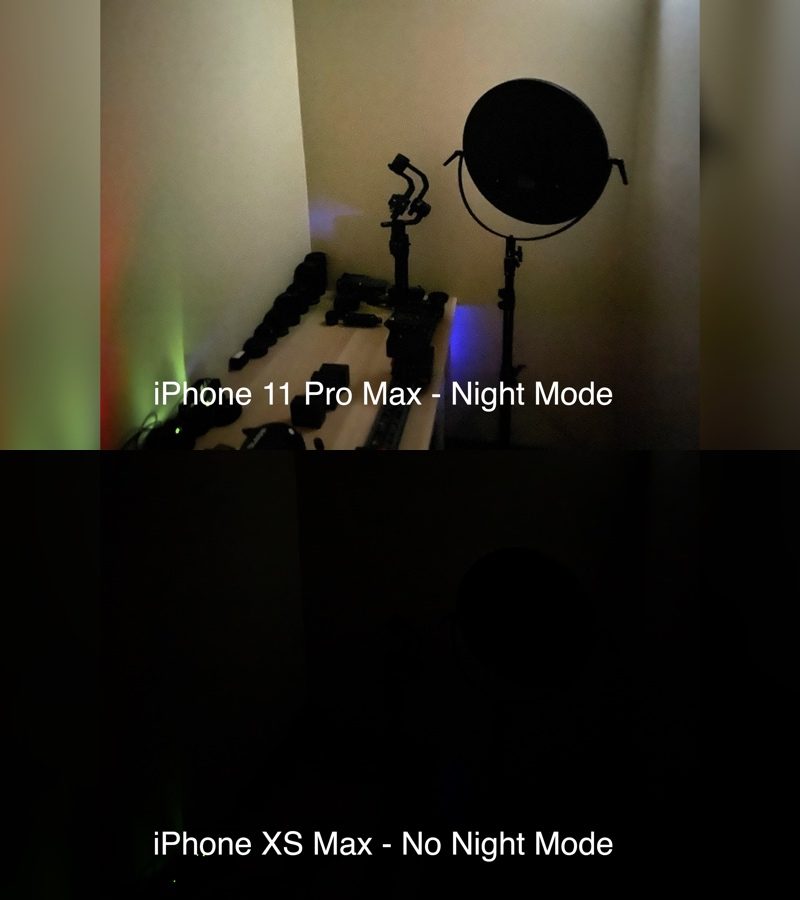
Perhaps the most interesting new camera feature is the new Night mode, which is designed to take crisp, clear shots in low lighting conditions using machine learning and photo aggregation techniques. We’ll be testing this out later too, but so far, it looks promising.
When it comes to the display, the iPhone 11 features the same LCD display as the iPhone XR, but the Pro has a Super Retina XDR display capable of 1200 nits of peak brightness, which is going to be noticeable when it comes to HDR. It’s not a big difference, though. The iPhone 11 display isn’t as good as the iPhone 11 Pro‘s display, but it’s definitely good enough for most people given the iPhone 11‘s much lower price point.
3D Touch is gone in all of the new iPhones this year, replaced with Haptic Touch. Haptic Touch does a lot of what 3D Touch does, but it’s an adjustment because there’s no pressure sensitivity.
Apple says Face ID is 30 percent faster in the new iPhones, and it does seem quicker. Face ID is also supposed to work from more angles, but it still doesn’t seem to work from flat on a desk and it still needs to be pointed in the general direction of your face.
All of the new iPhone models use an updated 12-megapixel front-facing camera and there are some notable updates. You can turn the iPhone to landscape mode to capture a wider shot, which is great for group selfies, and there’s a new slo-mo camera so you can capture what Apple calls “Slofies.” On the iPhone 11, since there are now two cameras, Portrait mode works with all kinds of objects and not just people like it did in the XR.
Apple introduced a new A13 chip in the 2019 iPhones, but last year’s iPhones were so quick that it’s tough to notice a difference in performance in real-world everyday usage. When it comes to gaming, photography, and AR, though, you may see some faster speeds.
All in all, the iPhone 11, 11 Pro, and 11 Pro Max aren’t wildly different from last year’s devices in terms of design and internal components, but the camera has received some major updates that really set these new iPhones apart from last year’s models. Those who are heavily into iPhone photography might want to update, but the camera-focused update may not appeal to the average user who already has an iPhone XS, XS Max, XR, or even an iPhone X or iPhone 8.
iPhone users who have an older iPhone like a 5, 6, or 7 model will see more satisfying changes, and for these models, the $699 iPhone 11 is the most logical and cost effective update.
Did you get one of Apple’s new iPhones? Let us know what you think in the comments. Stay tuned to MacRumors next week because we’ll have more video coverage of the new iPhones, including a deep dive into the cameras.
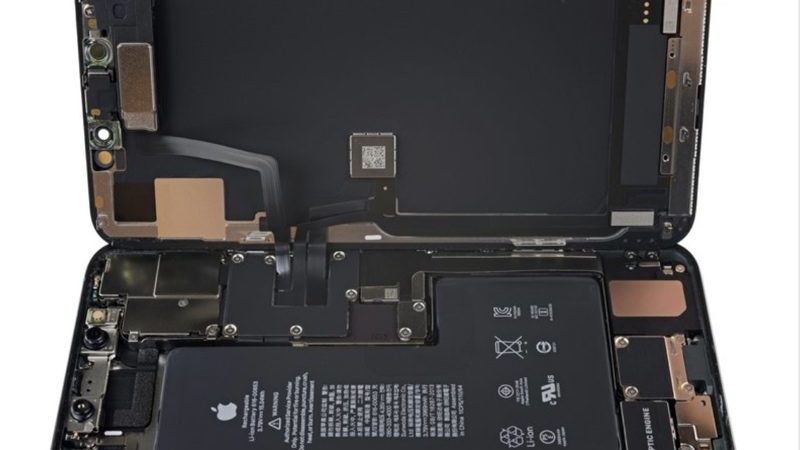
The repair site is just now digging into the iPhone 11 Pro Max, but has already found signs of the bilateral wireless charging feature that was rumored ahead of launch but ultimately not announced.
The iPhone 11 Pro teardown found two battery connectors in the new iPhones, which is a first, and further investigation by iFixit suggests the extra connector is a direct line to the wireless charging coil.
With the phone powered on, we disconnected the lower battery connector and the phone stayed on and charged via the Lightning port, but not over wireless charging. Seems this extra connector is a direct line to the wireless charging coil, which could be an important feature for bilateral charging!
What’s more, when we reconnected the cable, our phone displayed a momentary temperature warning before returning to normal. We suspect it lost contact with an important battery temperature sensor and shut itself down; this sounds a lot like a reverse wireless charging heat management feature to us.
Bilateral wireless charging would have allowed the new iPhones to wirelessly charge devices like the AirPods, the Apple Watch, and even other iPhones. It was an expected feature for much of the 2019 rumor cycle, but just before the new iPhones launched, rumors indicated Apple had decided to pull the feature.
Apple analyst Ming-Chi Kuo, who often shares accurate insights into Apple’s plans, said that bilateral wireless charging was nixed “because the charging efficiency may not match Apple’s requirements.”
It’s not entirely clear if bilateral wireless charging is something that can be implemented at a later date if the hardware is in place, or if that’s Apple’s plan, but as of now, there is no two-way wireless charging option despite the hints of it in the iPhone 11 Pro and Pro Max.
iFixit has also discovered a “new mysterious board” sitting below the battery that could be related to bilateral wireless charging.
The teardown so far has also revealed a slimmed down logic board to make room for the triple-lens camera setup and similar adhesive to last year’s iPhones despite new water resistance ratings.
iFixit is going to be working on its iPhone 11 Pro Max teardown for the next few hours. Those interested can follow along on the teardown page for updates, and we’ll also update this article when new details are shared.
Update: According to iMore‘s Rene Ritchie, bilateral inductive charging wasn’t pulled from the iPhone 11 because it was never slated for production to begin with. Ritchie says there is no hardware in iPhone 11 models that would allow such a feature to be enabled later.
Update: It’s my understanding bilateral inductive charging wasn’t pulled from the iPhones 11.
It was never slated for production and there isn’t anything in there that could be enabled later.
Apple today shared a new “Behind the Scenes” video highlighting how some of its iPhone 11 Pro footage used for promoting its newest devices was filmed.
The video demonstrates the photography rig used to capture Apple’s professional footage, and the process that photographer Justin Bettman used to get some of the shots.
Photographer Justin Bettman creates elaborate and detailed scenes in unexpected locations. Check out the process behind the production as Justin creates a bigger picture using the triple-camera system of iPhone 11 Pro.
Photographs created by Bettman have been shared on Apple’s Instagram account to highlight the iPhone 11 Pro‘s new triple-lens camera system with wide, ultra wide, and telephoto lenses.
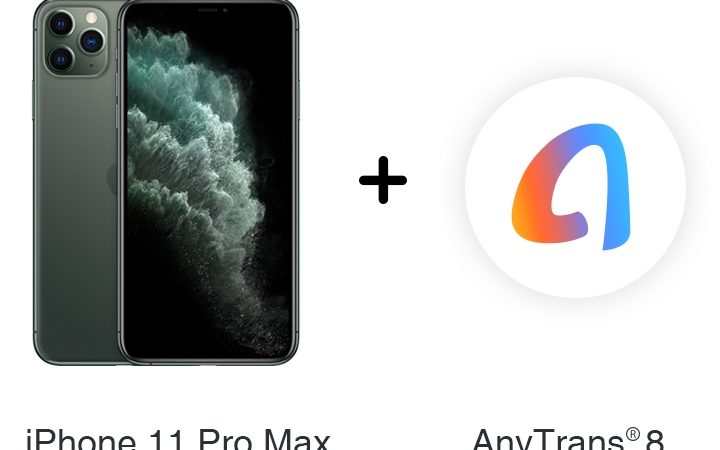
For this week’s giveaway, we’ve teamed up with AnyTrans to offer MacRumors readers a chance to win one of Apple’s new iPhone 11 Pro Max devices and a lifetime AnyTrans license.
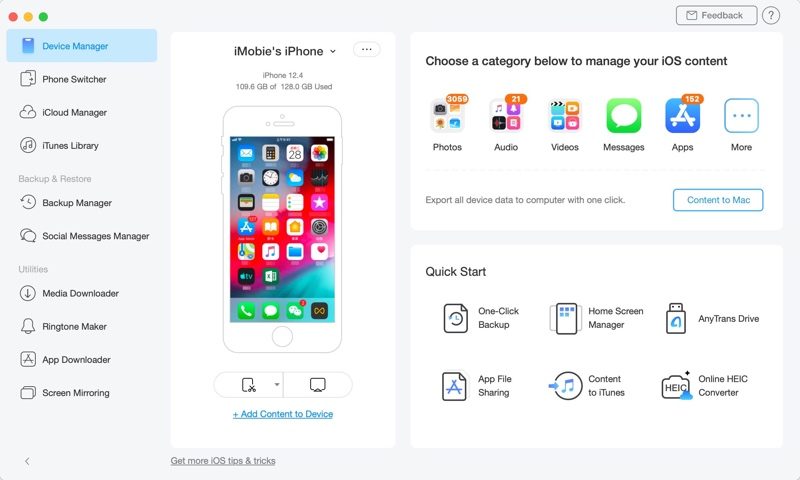
For those unfamiliar with AnyTrans, it’s an iPhone manager that’s an alternative to iTunes, allowing you to access and manage content that’s on your iPhone, as well as transfer files and back up data.
The newest version of AnyTrans, AnyTrans 8, recently launched with an overhauled user interface, a slew of new features, and improvements to data transfers and loading speeds, making iPhone content management easier than ever.
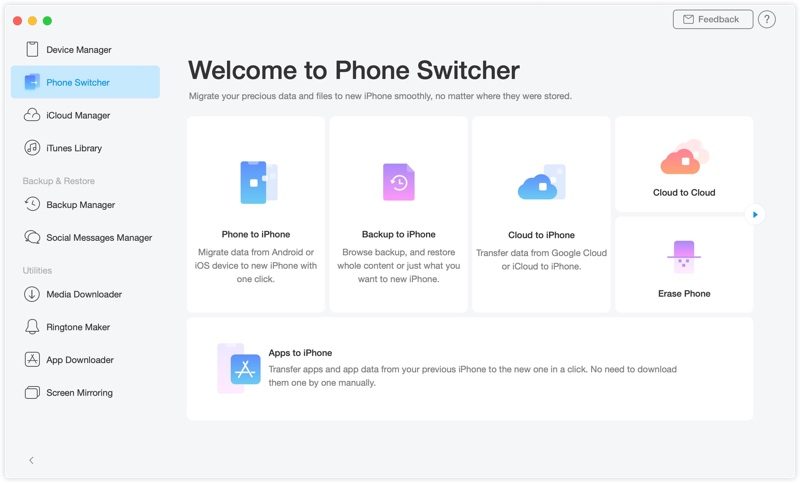
There’s a new Phone Switcher feature in AnyTrans 8 that’s ideal for transferring over to a new device, letting users transition to iPhone 11 from an older iPhone or an Android phone with a few simple steps.
Other new AnyTrans 8 features include a ringtone maker, an app downloader for managing your iOS apps on your computer (a feature no longer available in iTunes or in macOS Catalina) and a screen mirroring feature for mirroring and recording your iPhone screen with your computer.
AnyTrans is priced at $30 for a single license, but there is a free trial available for those who would like to try it out.
AnyTrans is providing one MacRumors reader with a 64GB iPhone 11 Pro Max in the color of the reader’s choice plus a lifetime license for the AnyTrans iPhone manager software.
Apple’s iPhone 11 Pro Max just came out today, and it features a triple-lens camera with telephoto, wide, and ultra wide angle lenses, a super fast A13 chip, much longer battery life, and more.
To enter to win the giveaway, use the Gleam.io widget below and enter an email address. Email addresses will be used solely for contact purposes to reach the winners and send the prizes. You can earn additional entries by subscribing to our weekly newsletter, subscribing to our YouTube channel, following us on Twitter, following us on Instagram, or visiting the MacRumorsFacebook page.
Due to the complexities of international laws regarding giveaways, only U.S. residents who are 18 years or older and Canadian residents (excluding Quebec) who have reached the age of majority in their province or territory are eligible to enter. To offer feedback or get more information on the giveaway restrictions, please refer to our Site Feedback section, as that is where discussion of the rules will be redirected.
The contest will run from today (September 20) at 11:00 a.m. Pacific Time through 11:00 a.m. Pacific Time on September 27. The winner will be chosen randomly on September 27 and will be contacted by email. The winner will have 48 hours to respond and provide a shipping address before a new winner is picked.
Due to Apple seeding the iOS 13.1 beta prior to the public release of iOS 13, upgrading to a new iPhone may be a bit trickier this year.
In a support document, Apple has provided instructions for migrating data from an older iPhone running the iOS 13.1 beta to an iPhone 11, iPhone 11 Pro, or iPhone 11 Pro Max, which run iOS 13.0 out of the box.
The instant option is to set up the iPhone 11 as new, update the device to the iOS 13.1 beta, and then restore from an iCloud or iTunes backup:
Back up the older iPhone via iCloud or iTunes.
Power on the new iPhone, select “Set Up as New iPhone” during the set up process, and follow the steps as prompted.
On the new iPhone, install the iOS 13 beta profile from either the Apple Beta Software Program or the iOS Developer Program, depending on whether you had the developer or public beta installed on the older iPhone.
Upgrade the new iPhone to the iOS 13.1 beta.
After the upgrade is complete, go to Settings > General > Reset > Erase All Content and Settings on the new iPhone. This will bring the iPhone back to the “Hello” set up screen.
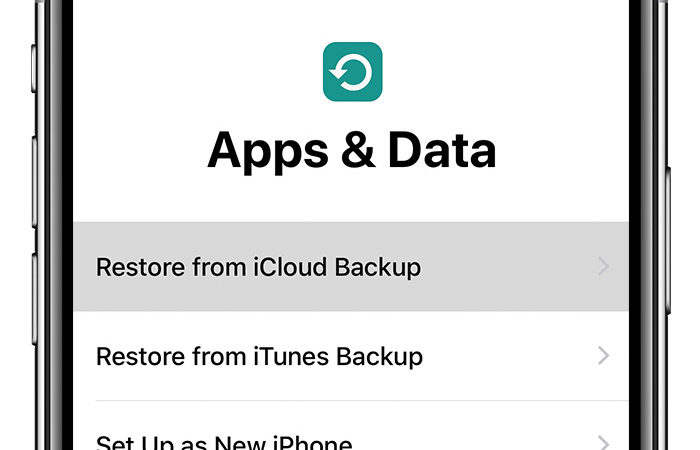
Set up the new iPhone via “Restore from iCloud Backup” or “Restore from iTunes Backup” during the set up process.
The second option is to set up the iPhone 11 as new and sign in to iCloud on the device. When iOS 13.1 is publicly released on September 24, install the update, then restore from your older iPhone’s backup:
Back up the older iPhone via iCloud or iTunes.
Power on the new iPhone, select “Set Up as New iPhone” during the set up process, and follow the steps as prompted.
Wait until September 24 and install the publicly released version of iOS 13.1 via Settings > General > Software Update.
After the upgrade is complete, go to Settings > General > Reset > Erase All Content and Settings on the new iPhone. This will bring the iPhone back to the “Hello” set up screen.
Set up the new iPhone via “Restore from iCloud Backup” or “Restore from iTunes Backup” during the set up process.
These steps are required because Apple does not allow an iPhone to be restored from a backup of a newer iOS version. Since the iPhone 11 models come preinstalled with iOS 13, they cannot be set up based on an iOS 13.1 backup.
If your older iPhone is running a version below iOS 13.1, these steps are not necessary.